Upload a clear photo
Choose a JPG, PNG or WebP up to 10MB. Drop it into the input or paste from your clipboard. Use one reference with the whole subject in view; replacing it should be a deliberate choice.
Your photo. A different medium.
Keep the subject. Change the medium.
Turn image into sketch with pencil, charcoal or ink. Choose a drawing treatment, add a note if you need one, then compare your photo with the result.
Gallery examples use Nano Banana Pro. Loading their settings selects its 8-credit setup; the model menu and final button show the price before you generate.
Same reference. Different marks.
A photo to sketch converter should do more than remove color. These twelve treatments use the same source portrait, so differences in shading, line weight and paper remain visible. Pick a medium for your uploaded image; changing the selection does not spend credits.
Actual edits of a synthetic reference. The medium previews were generated with the same drawing instructions used by this tool.
Choose a JPG, PNG or WebP up to 10MB. Drop it into the input or paste from your clipboard. Use one reference with the whole subject in view; replacing it should be a deliberate choice.
Select your medium in the input card. The style instructions are already provided. Use the optional note for a change such as keeping glasses or simplifying a busy background. Check the selected model and displayed price.
Wait for the result in the same preview panel. Drag the comparison, inspect a face or building in full screen, and choose your download format. A different format does not require another generation.
From portraits to places
Different subjects need different checks. Every comparison below pairs a synthetic photograph with its actual edited result. Use the matching setup to try the same reference, or upload your own. The gallery is artwork from model runs, not customer submissions.
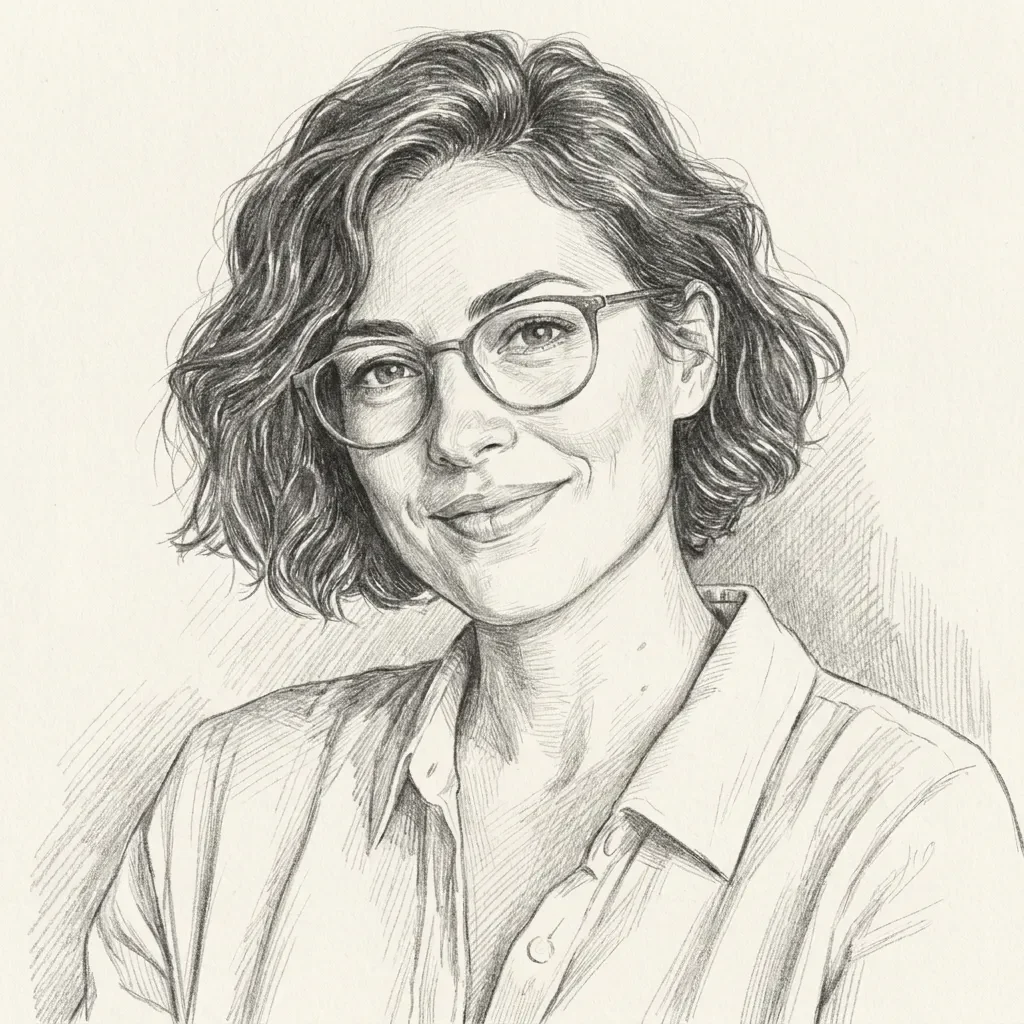
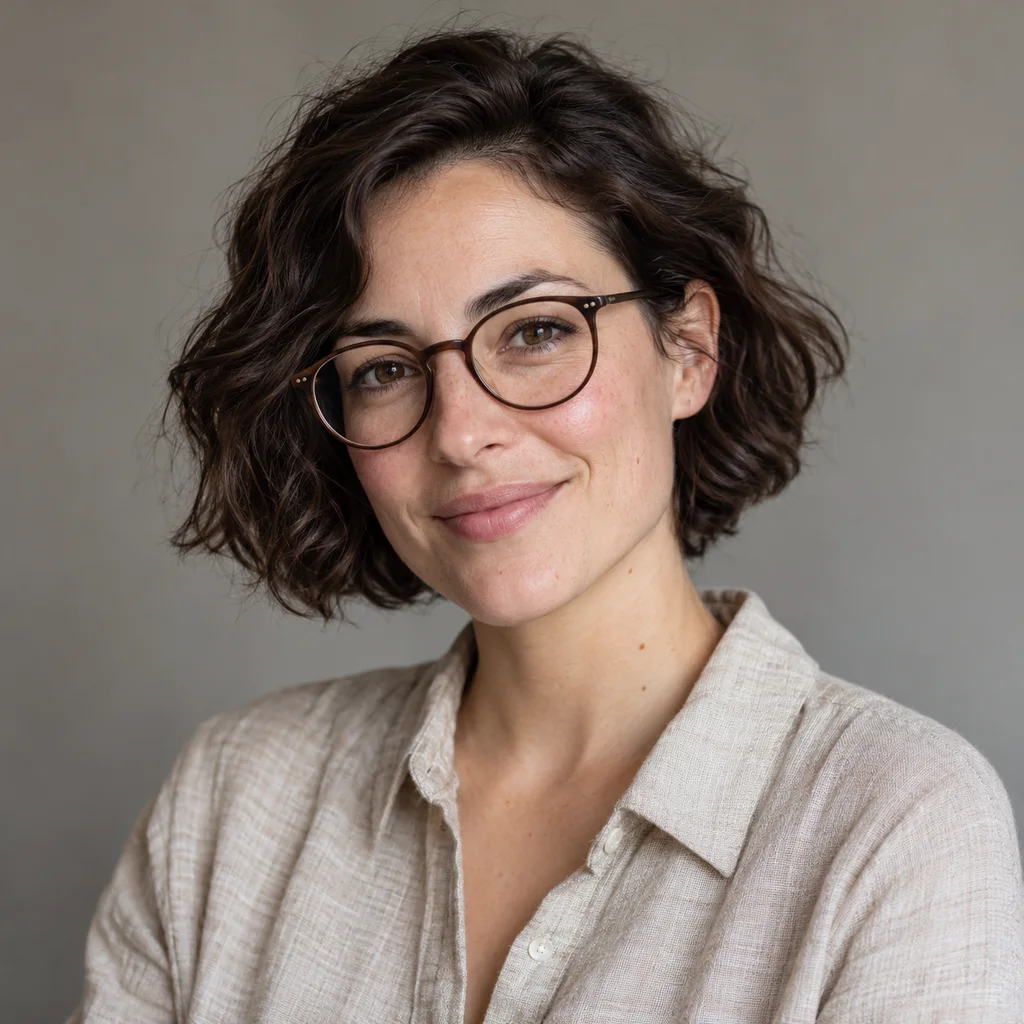
Graphite pencil
Look at the glasses, the angle of the face and the hair silhouette before judging the pencil texture. A recognizable portrait depends on those relationships, not on adding every skin detail. Graphite uses fine hatching to describe the cheek and jaw while leaving paper for highlights. Start with a clear face at a useful size. Tiny faces, motion blur and deep shadows leave the model less information to work with.
1K · one reference · actual model output
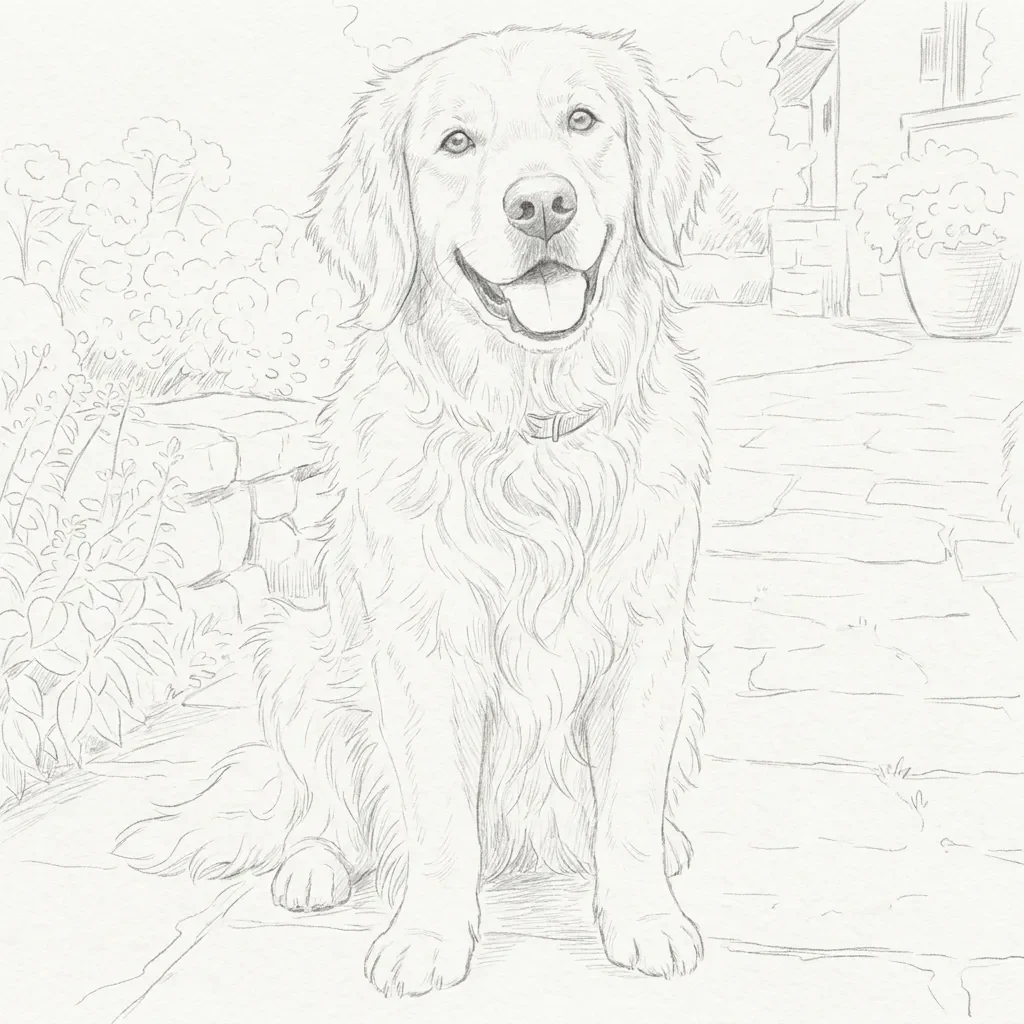
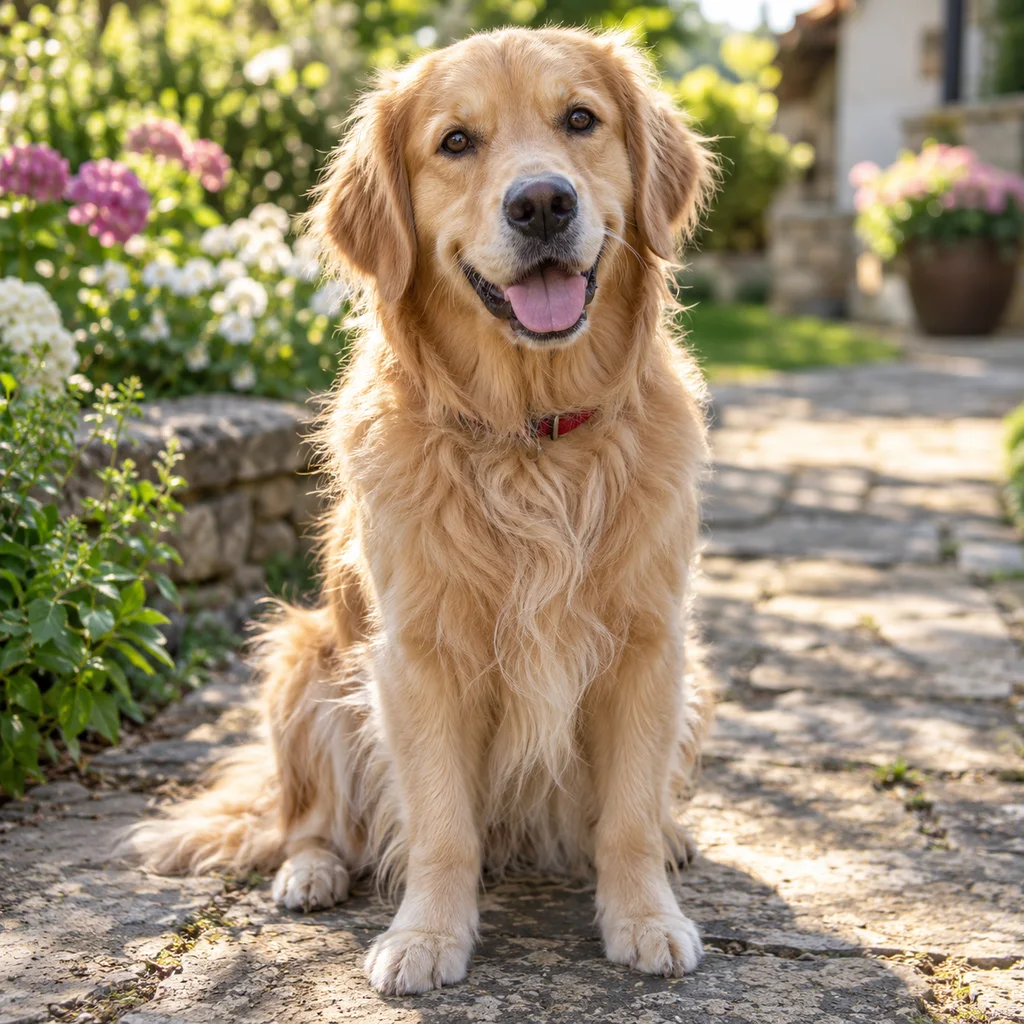
Soft pencil
Light fur needs separation without turning every strand into a dark contour. Check the eyes, muzzle, ears and front paws, then compare the direction of the coat. Soft pencil is a useful starting point when you want a gentle keepsake rather than a dramatic poster. Keep the pet reasonably large in the photo. Small markings can shift, so inspect the result before using it as a memorial or gift.
1K · one reference · actual model output
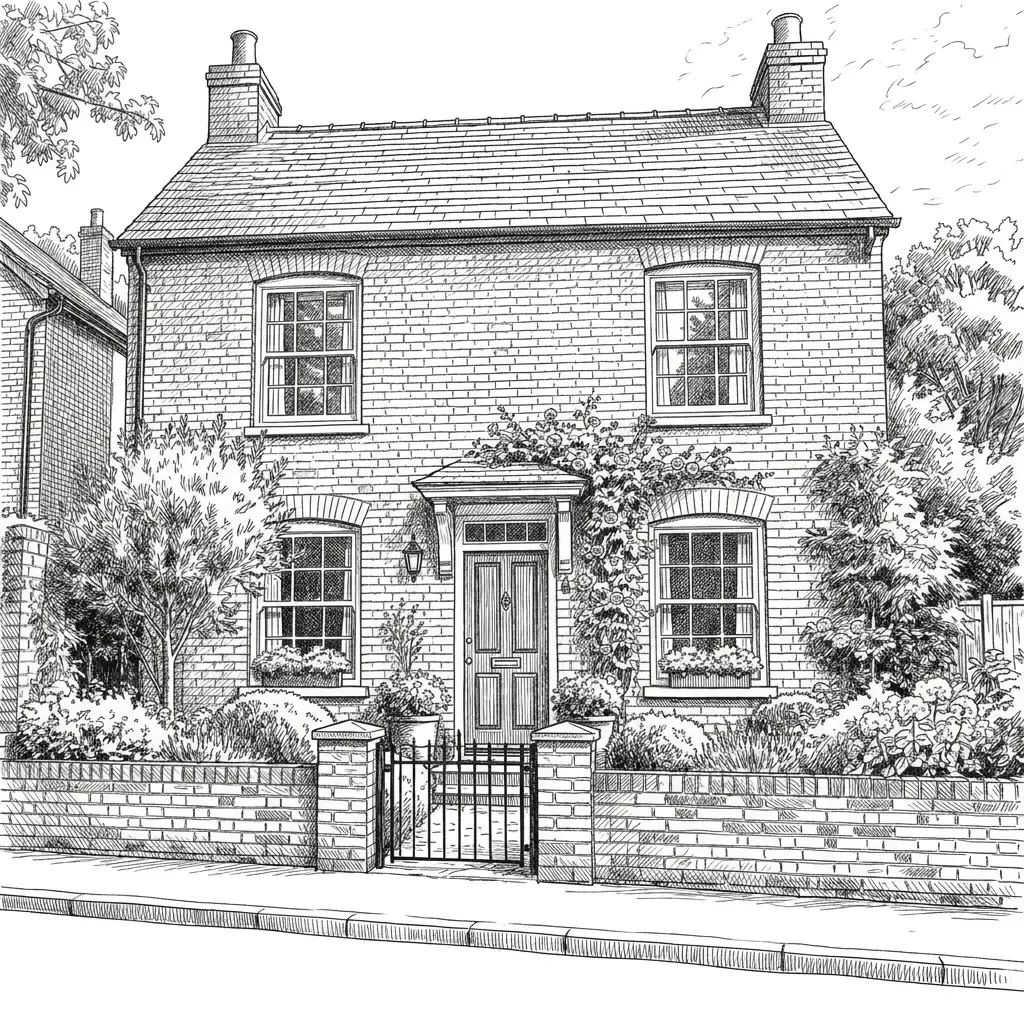
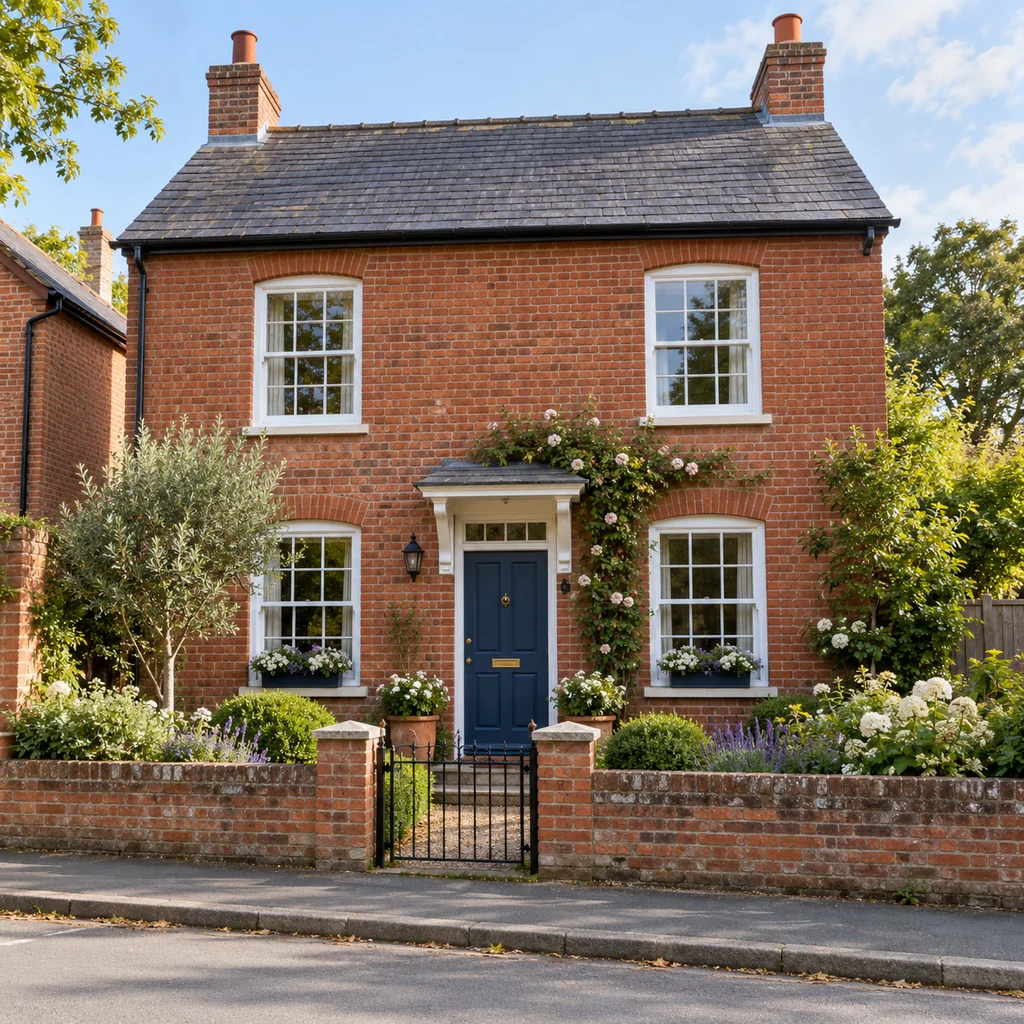
Pen & ink
Pen strokes can describe window frames, masonry and roof shapes without copying every brick. Compare the main openings and the camera viewpoint. The goal is an expressive architectural illustration, not a measured building survey. If a doorway or house feature matters, name it in your note. Small signs and exact lettering are less reliable. This raster download is useful as artwork, but it does not contain editable vector paths.
1K · one reference · actual model output
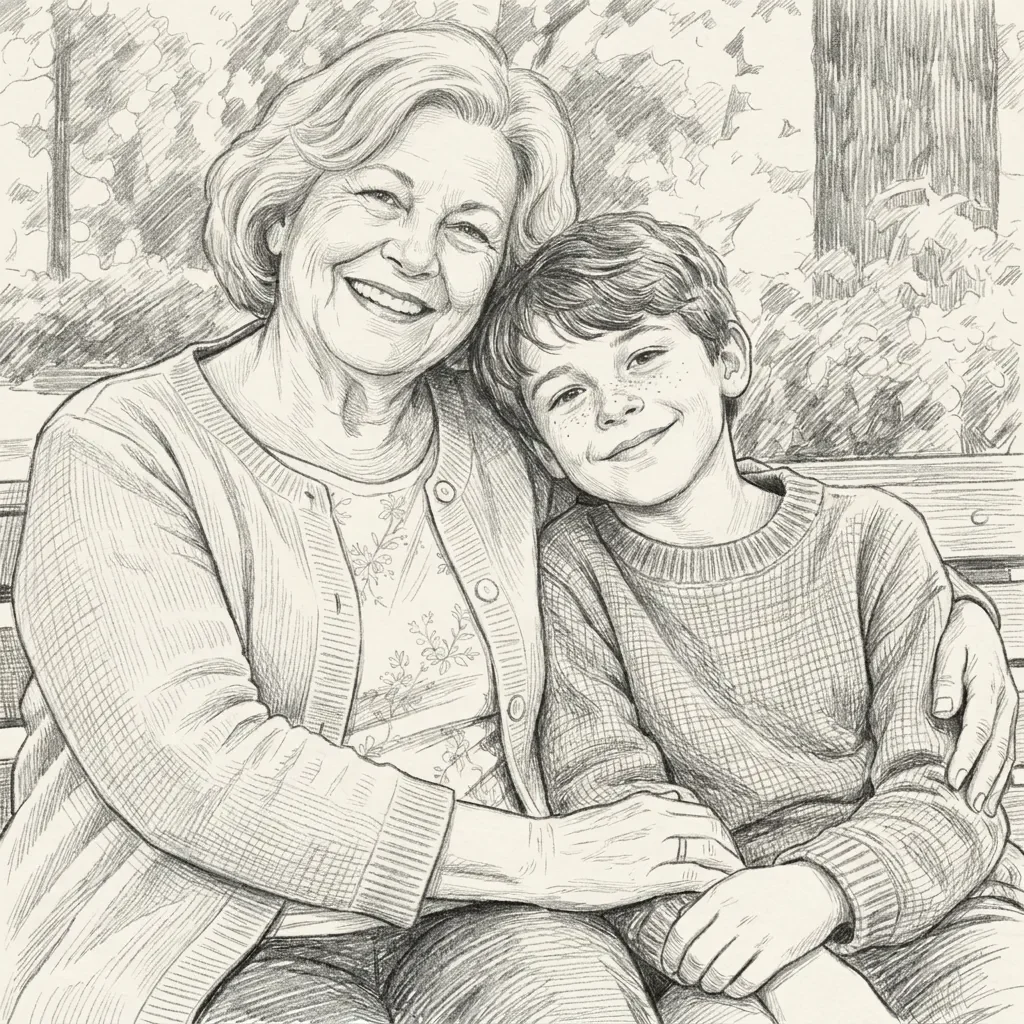
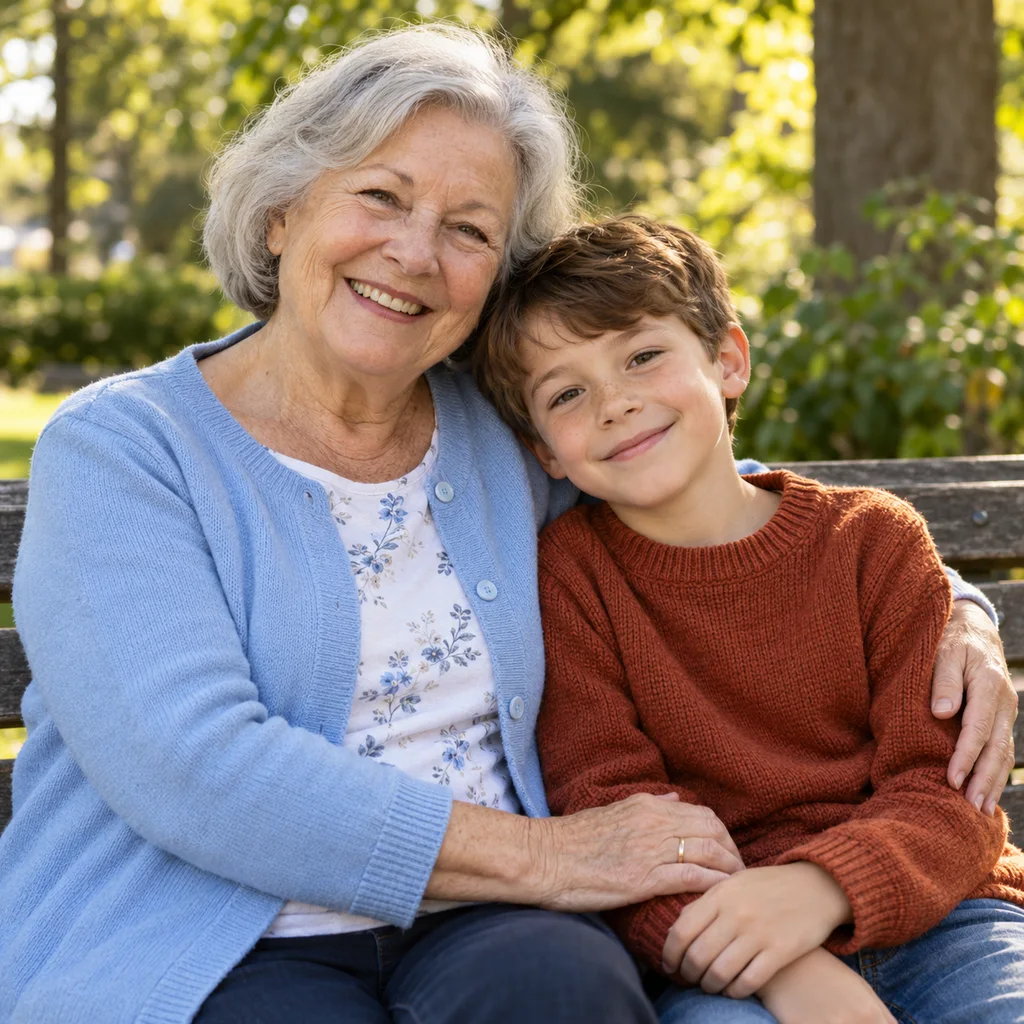
Graphite pencil
Two faces need to remain two distinct people. Compare the apparent ages, eye lines, relative head positions and the contact between shoulders. A restrained pencil treatment lets the relationship remain the subject of the picture. Group photos are harder when faces overlap or sit far from the camera. Use an uncropped, well-lit reference and review every face separately; a pleasing overall drawing can still contain a mistaken hand or changed expression.
1K · one reference · actual model output
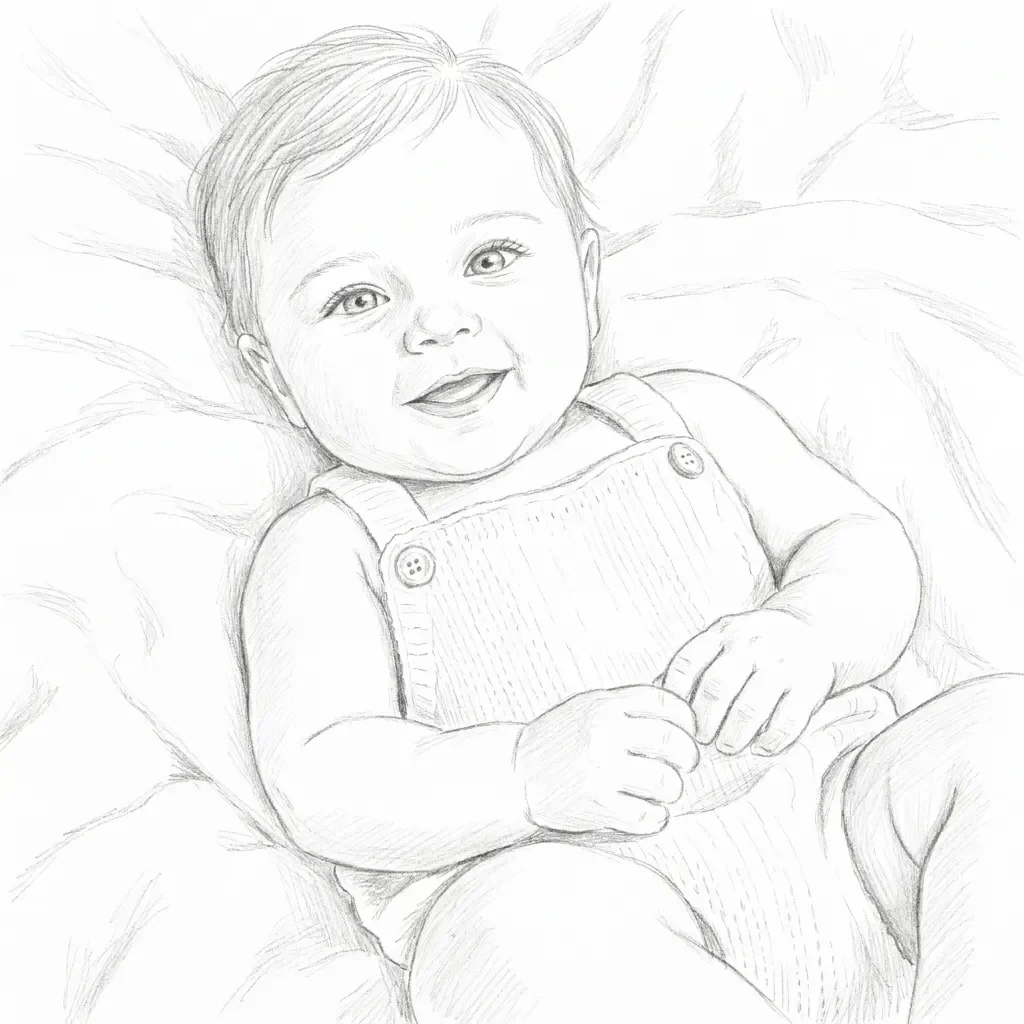
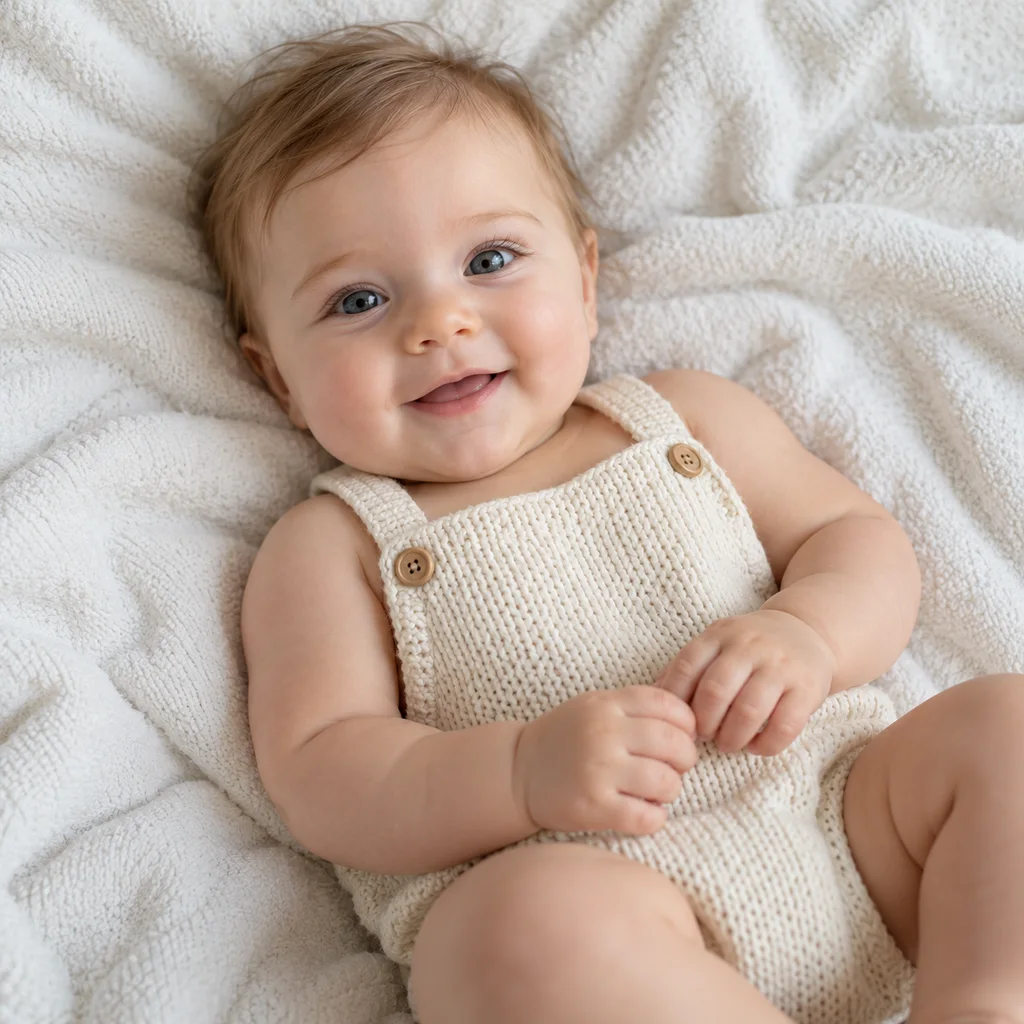
Soft pencil
Soft shading and plenty of paper work well with gentle lighting. Check the infant-like proportions, expression and small hands instead of accepting a result because it looks cute. A simple blanket already provides a clean setting, so there is little reason to add a separate background control. If you want an empty paper background, say so in the optional note. The tool creates an illustration, and it cannot promise an exact likeness.
1K · one reference · actual model output
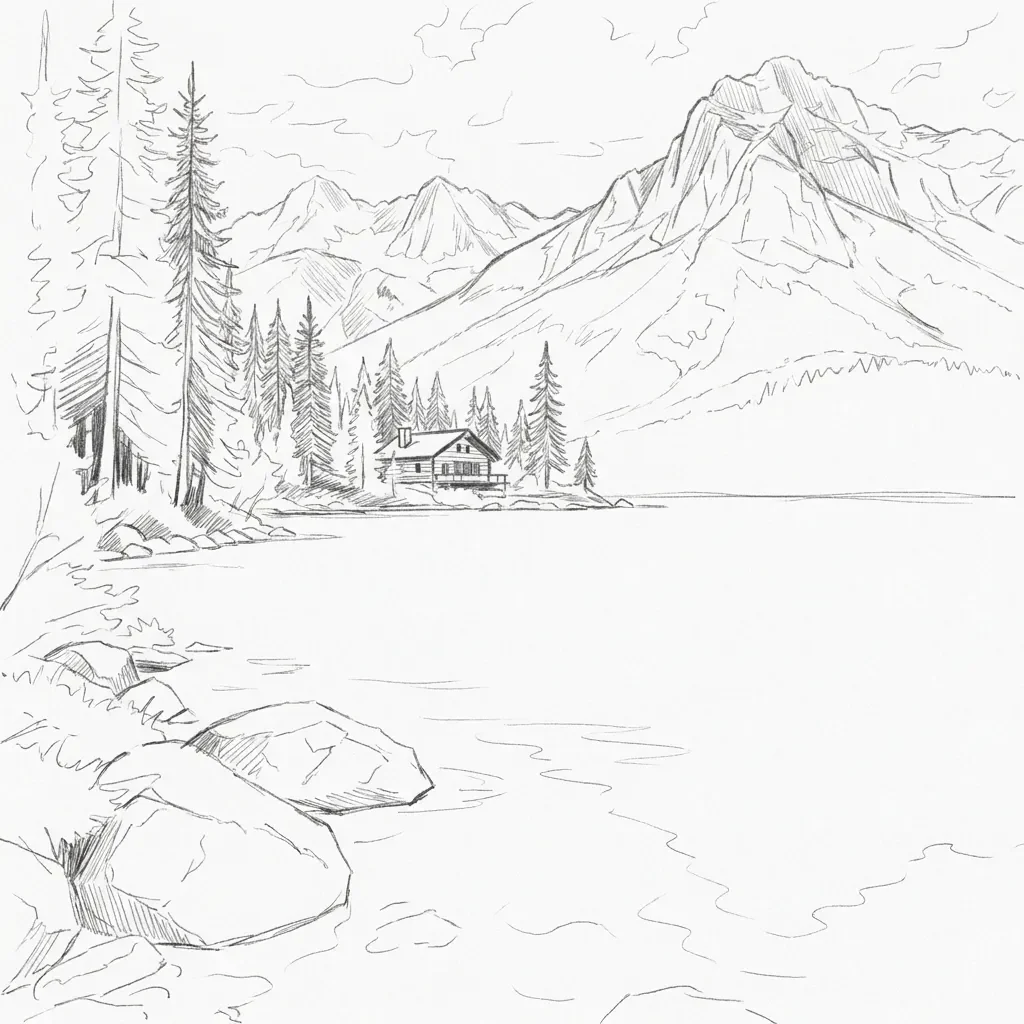
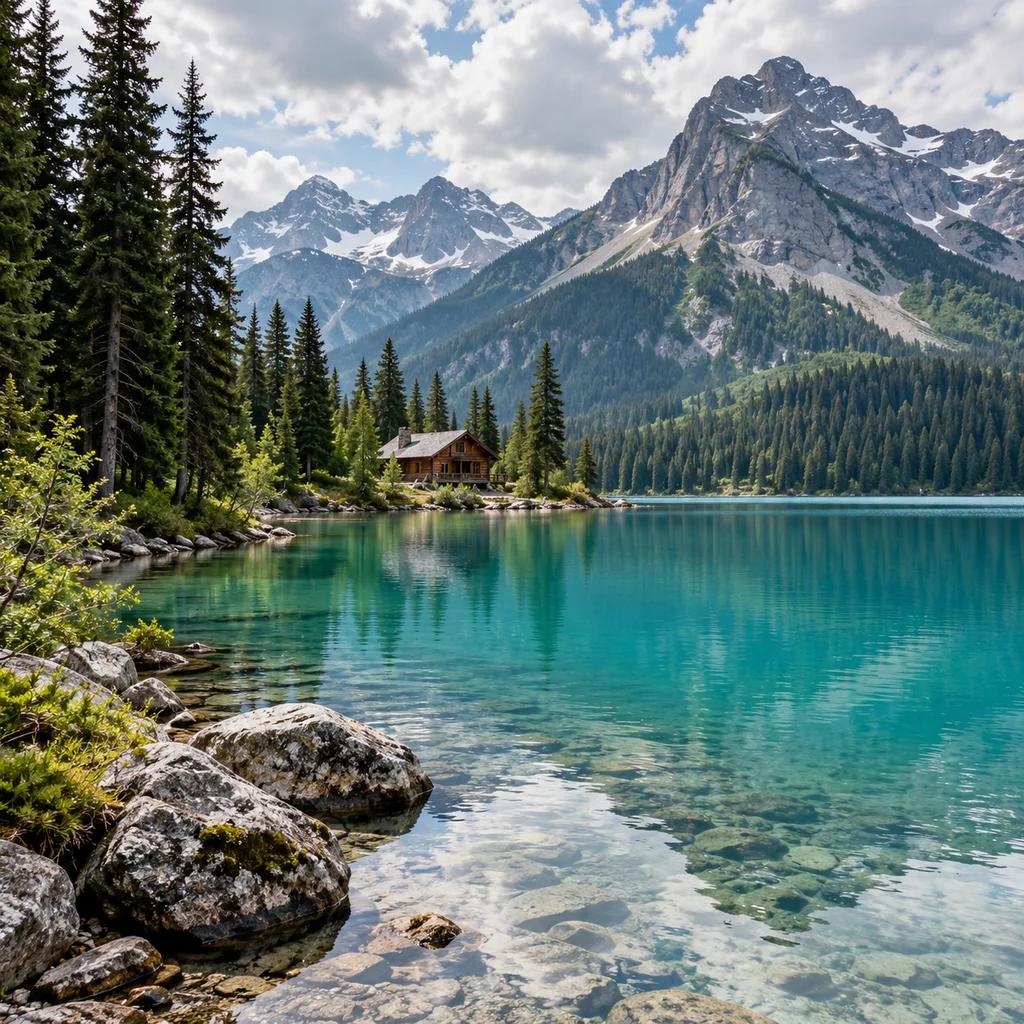
Loose sketch
A loose sketch can leave some trees and shore textures unfinished while keeping the arrangement of lake, cabin and mountains. Compare the large shapes first. This treatment is intentionally less detailed than graphite: it should not look like the same dense drawing with a different label. Avoid asking for every leaf and a minimal sketch at the same time. A short note about the main landmark gives the model a clearer priority.
1K · one reference · actual model output
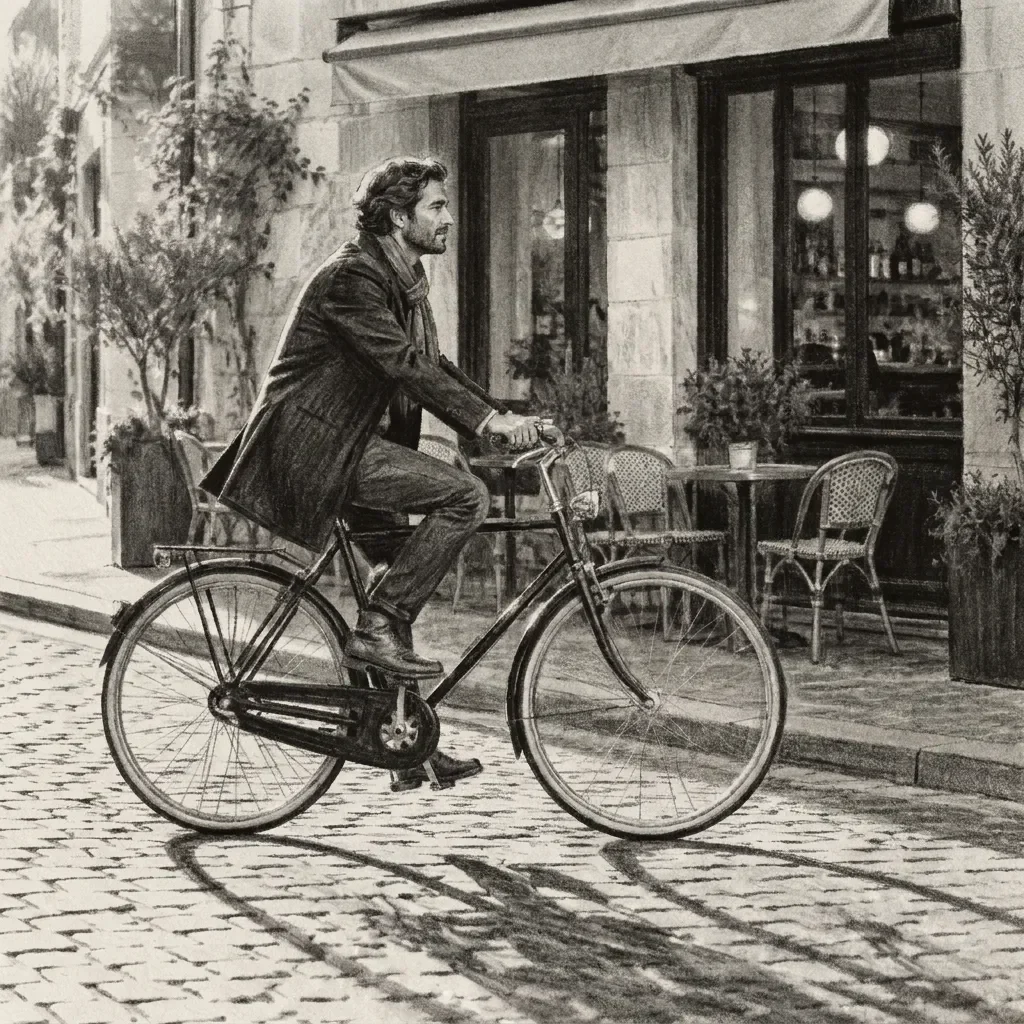
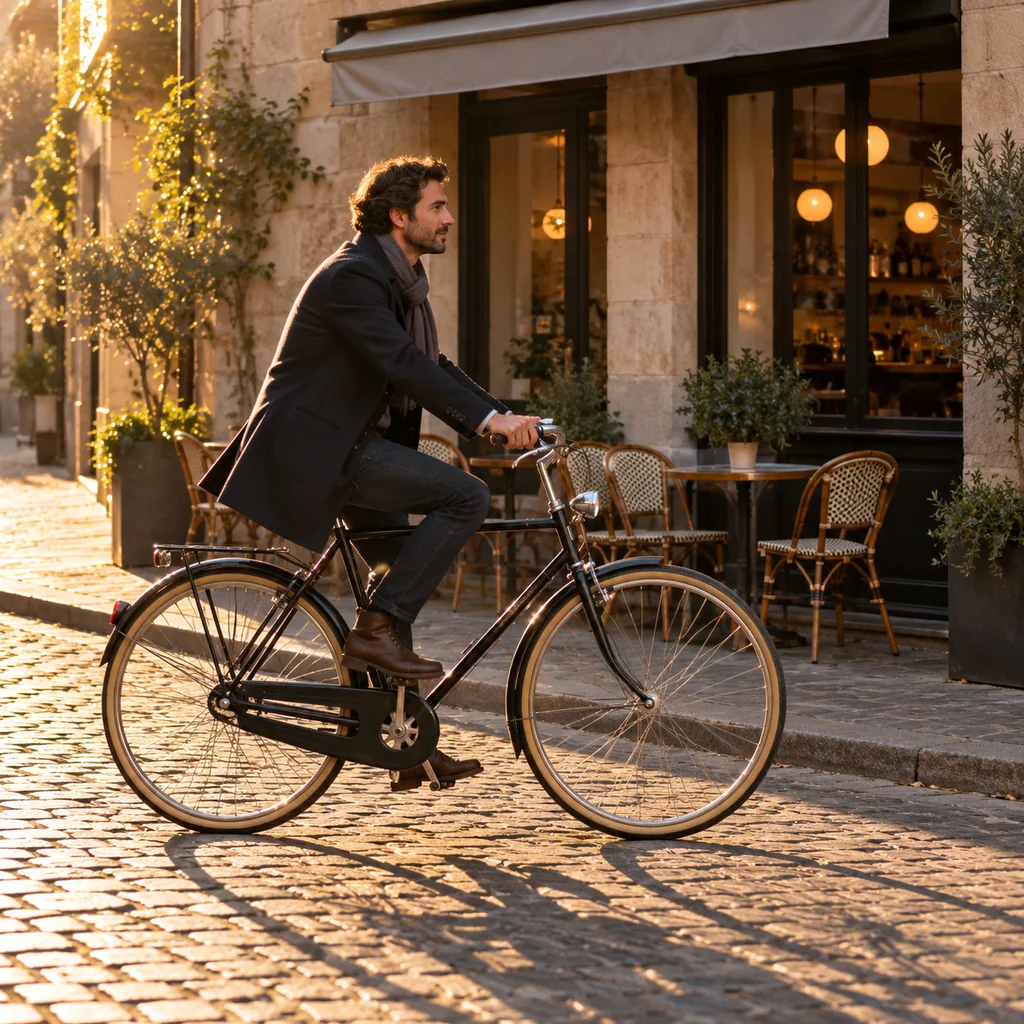
Charcoal
Charcoal works through broad marks and value changes. Check that the rider, wheels and building edges remain readable against the darkest areas. Dramatic shadows should support the picture rather than conceal the subject. Very low-light photos may already contain too little information for a convincing drawing. If the output loses the face or fills a coat with featureless black, try a lighter reference or choose soft pencil for the next edit.
1K · one reference · actual model output
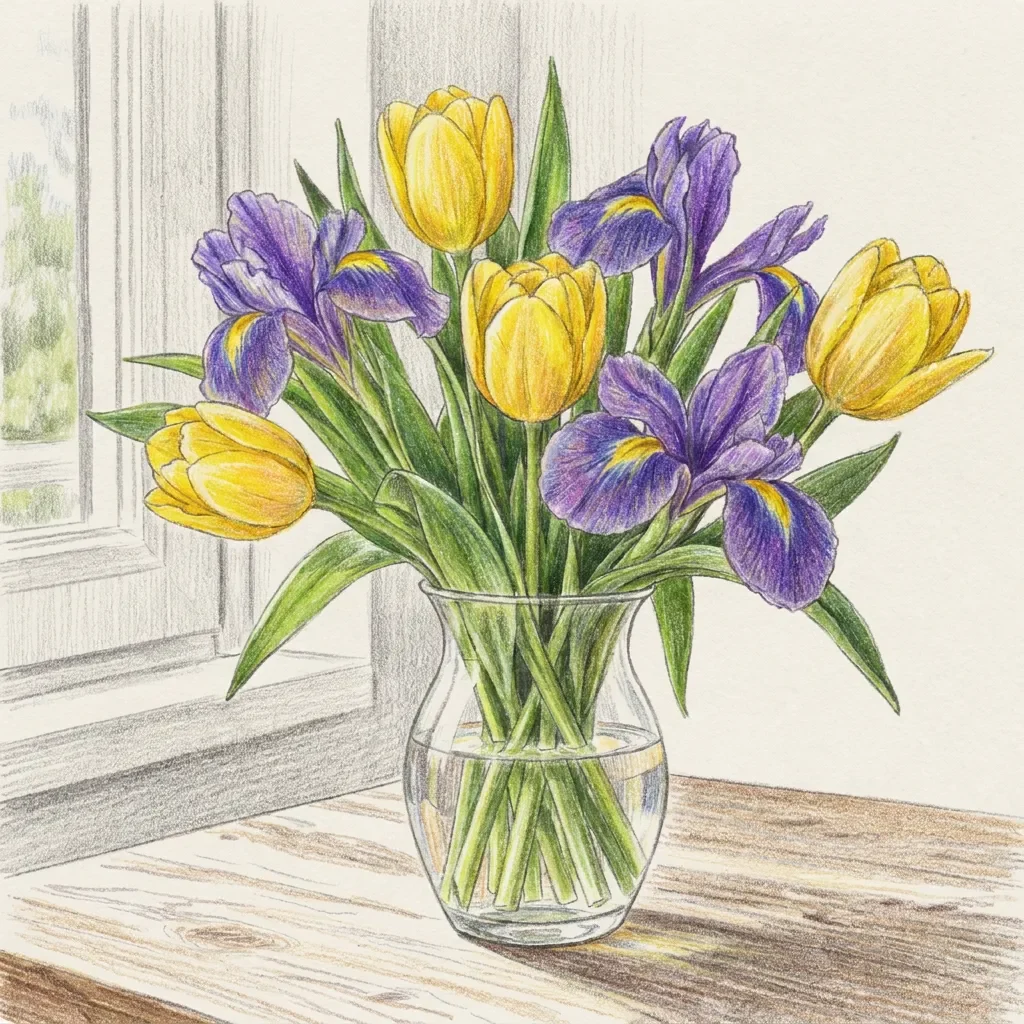
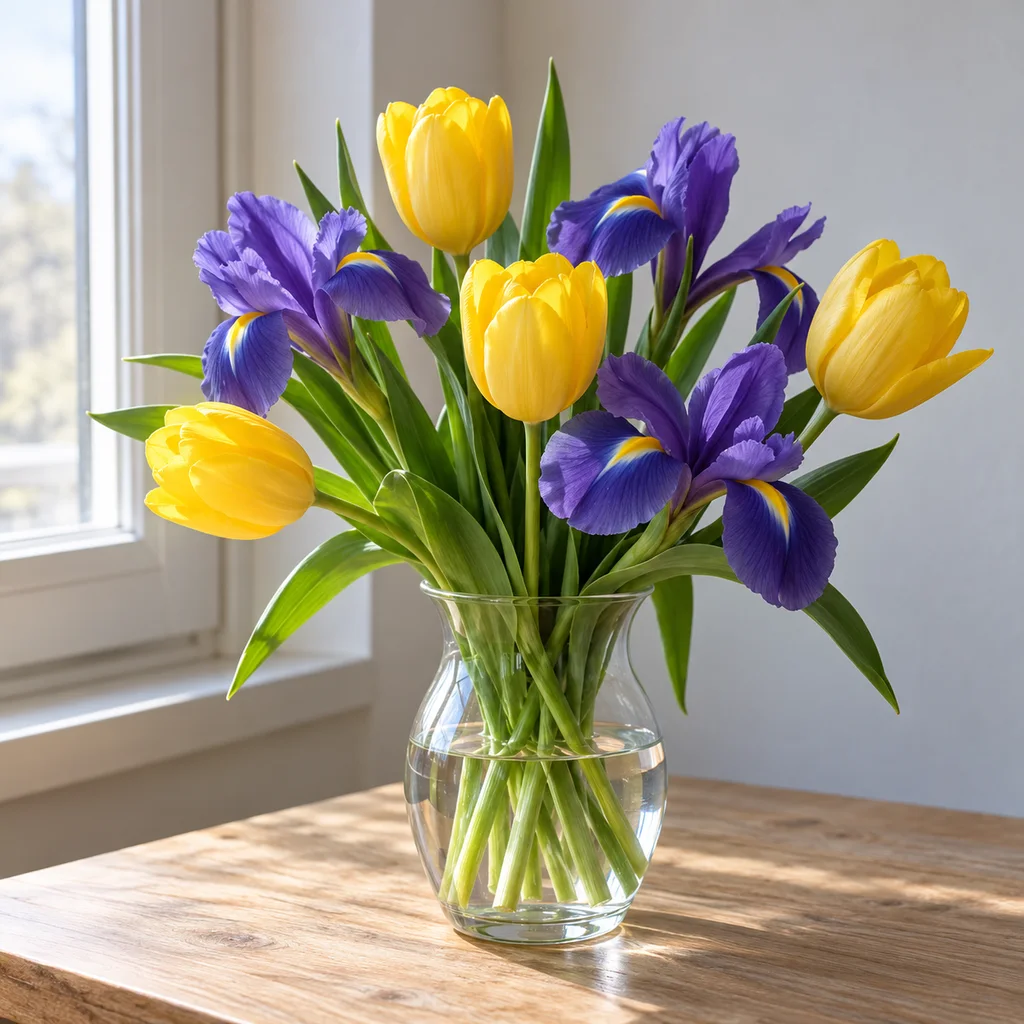
Colored pencil
Colored pencil keeps a different promise from the monochrome options. Look for layered pigment strokes, white paper between marks and recognizable flower colors. A smooth watercolor wash or glossy digital painting is a different medium. Compare the vase, major petals and stems as well as the palette. This style is useful for a journal or small decorative image; the example shows an actual edit, not a claim that every arrangement will retain an identical petal count.
1K · one reference · actual model output
A selected medium supplies the drawing direction. Your optional note stays beside the reference and price, instead of being split across background, likeness and strength controls that the model may not actually support.
The style thumbnails keep the same person, pose and framing. Scene examples change the subject to demonstrate different tasks. This separates what the medium changes from what the reference brings to the result.
The before and after share one canvas. The comparison remains available in the full-screen viewer with zoom controls. You can find changed glasses, missing people or misplaced details before deciding whether a download is useful.
The page uses the same private uploads, account credit balance and generation history as the rest of Reimorph. The first-preview eligibility is shared. Choosing a new tool is not a reason to create another account or lose a photo draft.
What to check in your edit
A grayscale photograph keeps photographic texture. Pencil drawing should show marks that explain the form; ink should use lines rather than smooth gray gradients. Color belongs in the colored-pencil option. A result can be attractive and still miss the medium you selected, so compare the visible texture as well as the overall subject.
The reference guides the edit but does not lock every pixel. Inspect faces, hands, fur markings, window counts and bicycle parts. Busy backgrounds can make a sketch feel crowded. Try a simpler photo or state which detail matters most. Review the actual file dimensions before printing; converting its format adds no new drawing detail.
We ran the same synthetic portrait and graphite instructions through all three editing models at 1K. In these particular results, Grok kept a soft, grainy finish; GPT used dense, fine shading; Nano gave the hair and shirt more distinct drawn strokes. All three changed small facial details. This is a comparison of three individual outputs, not a success-rate study or a promise that the more expensive option always wins.
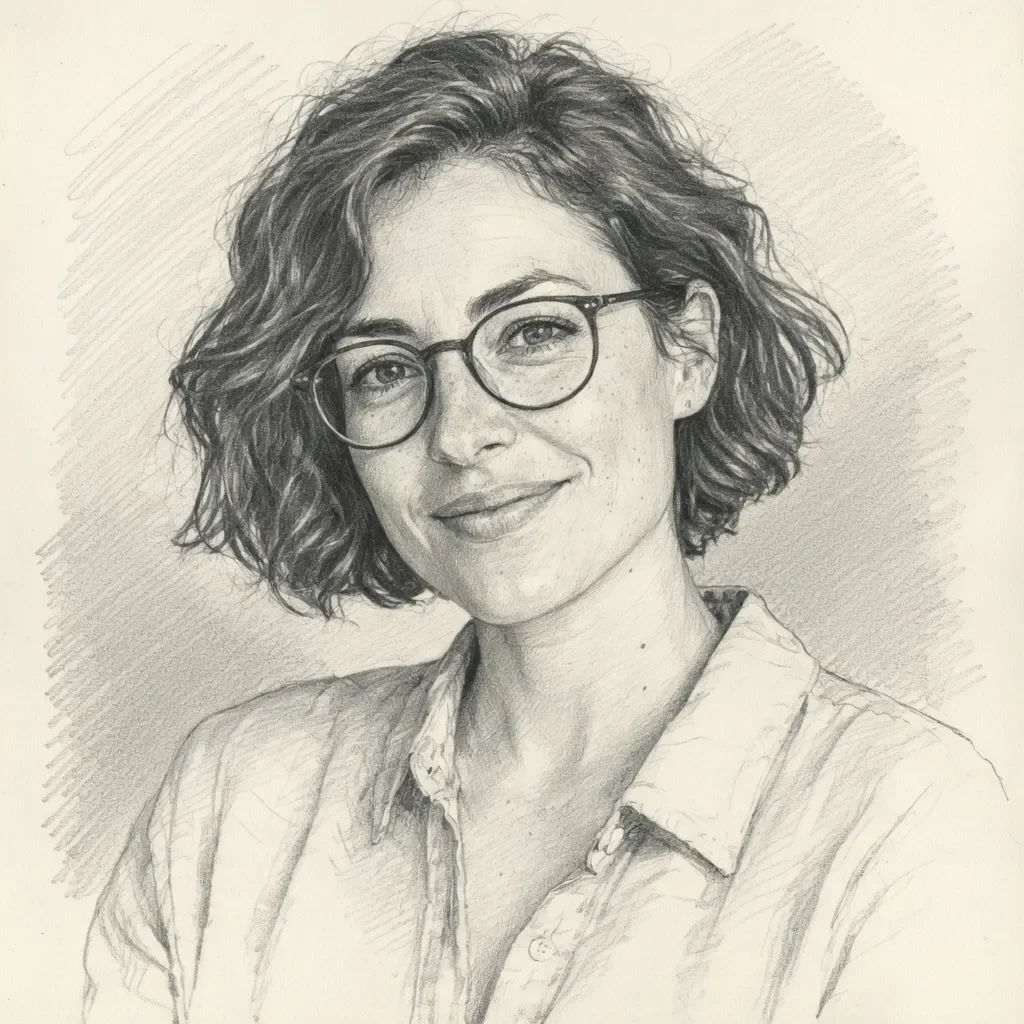
2 credits · single reference · 1K
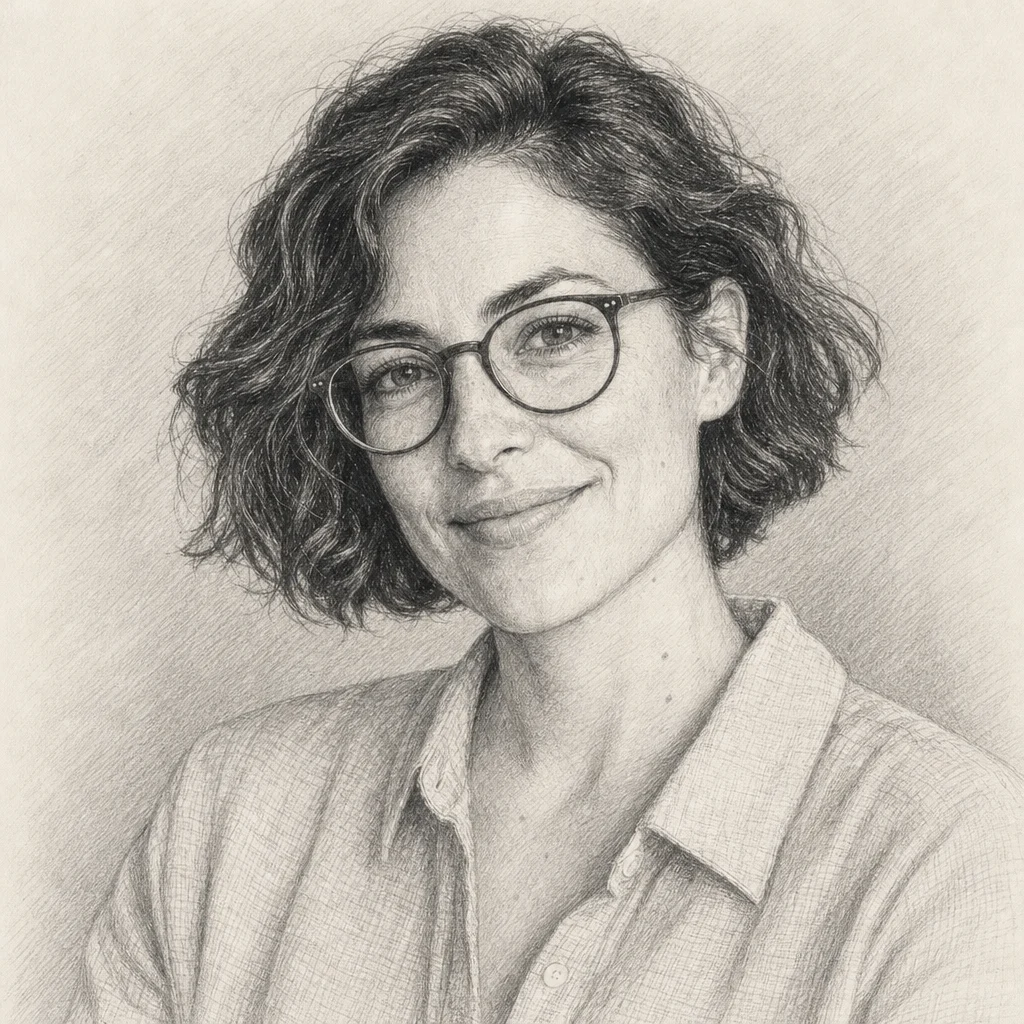
4 credits · medium · single reference · 1K
8 credits · single reference · 1K
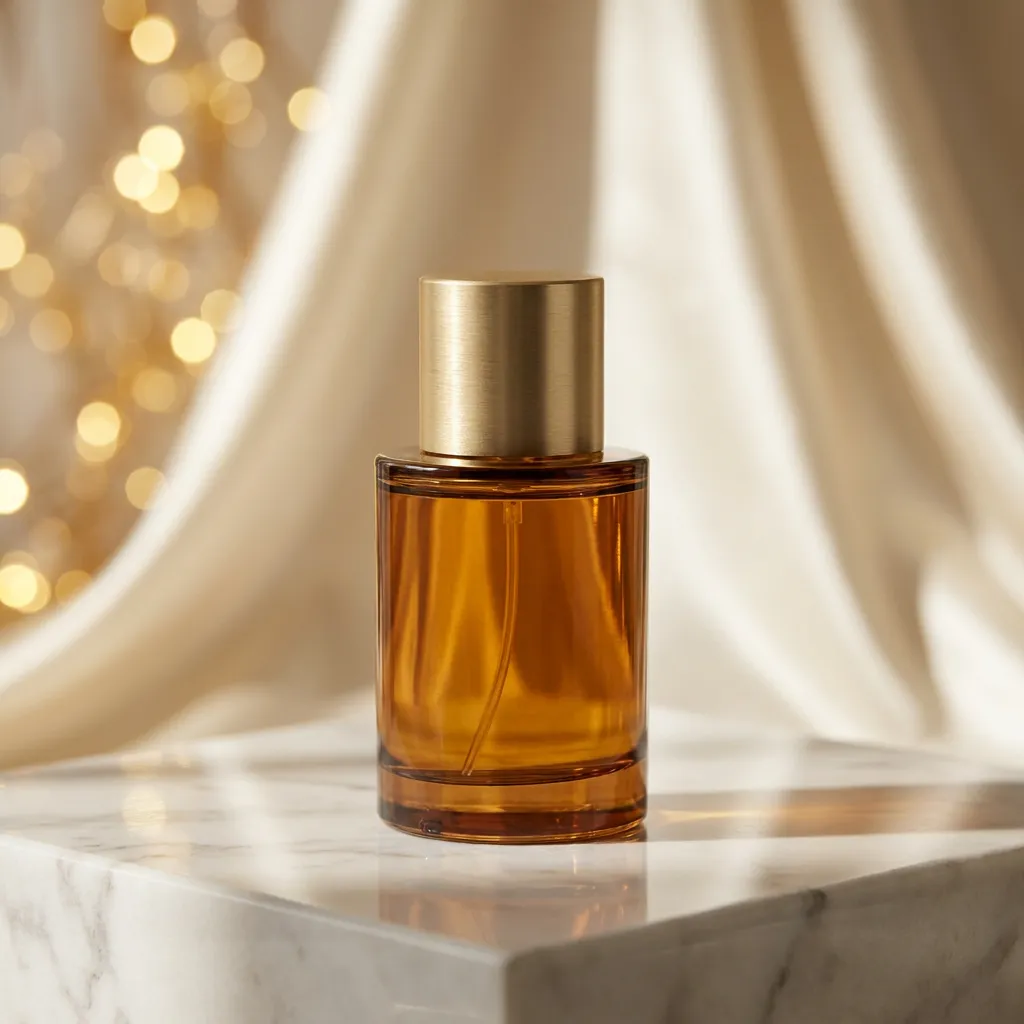
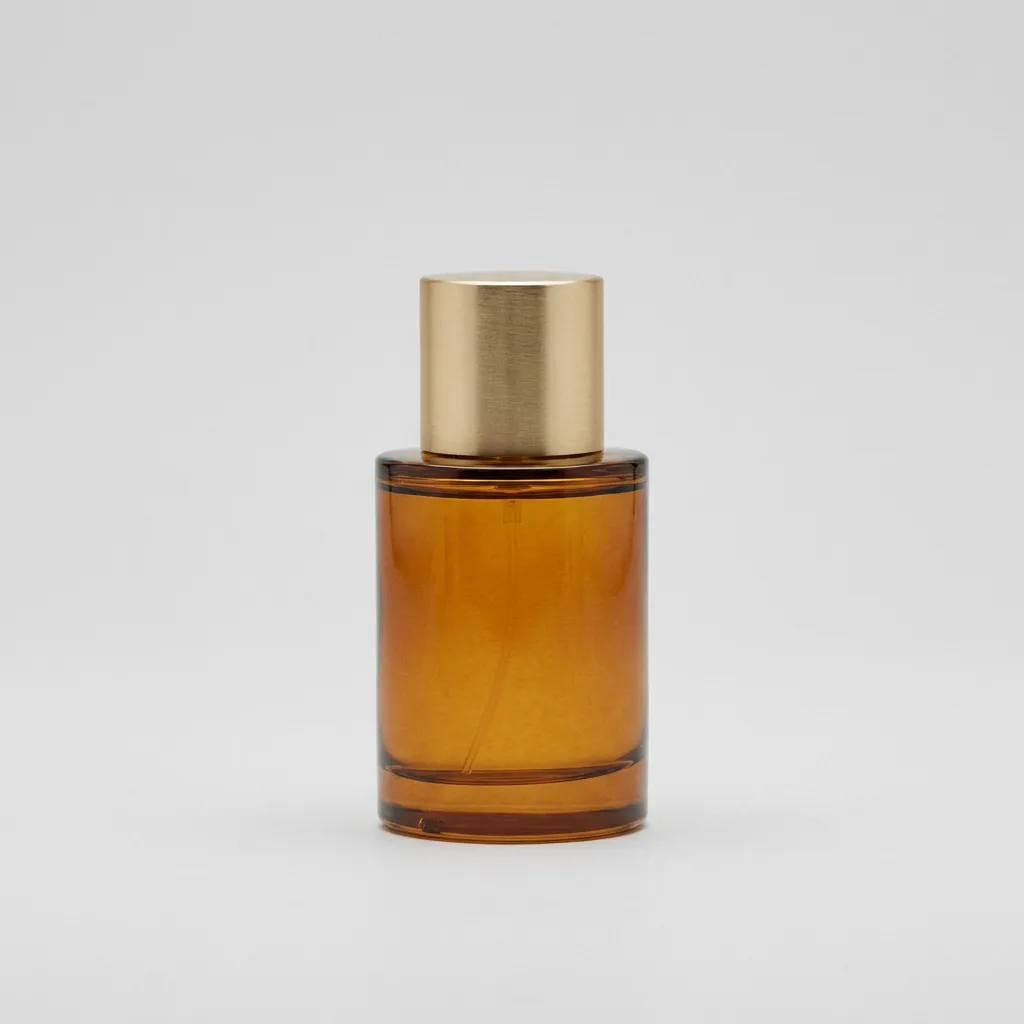
Continue with your photo
Keep editing beyond an anime style. Change a product scene, an outfit or the atmosphere in a photo with a focused instruction, while using the reference as your starting point.
Drag to inspect the actual Nano Banana Pro edit. These are synthetic demonstration references.
Go to Image to Image AI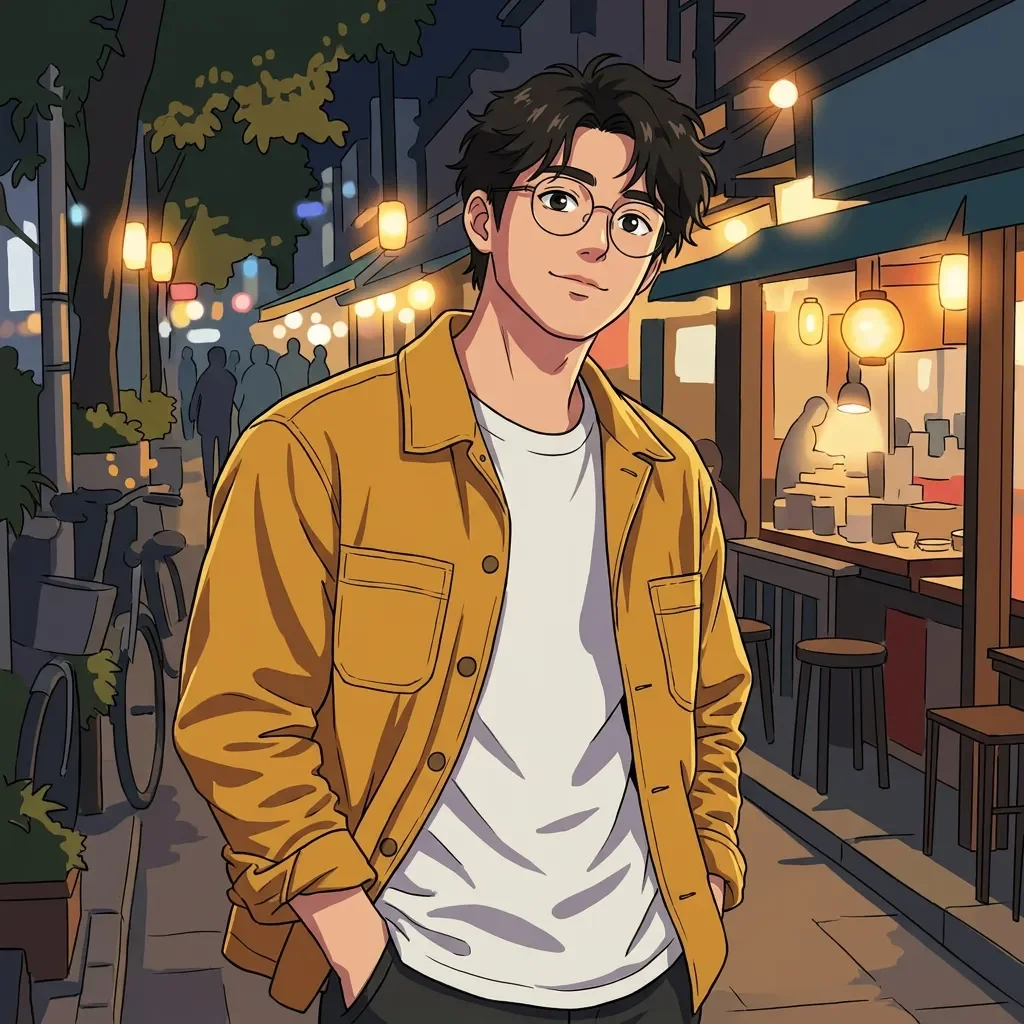
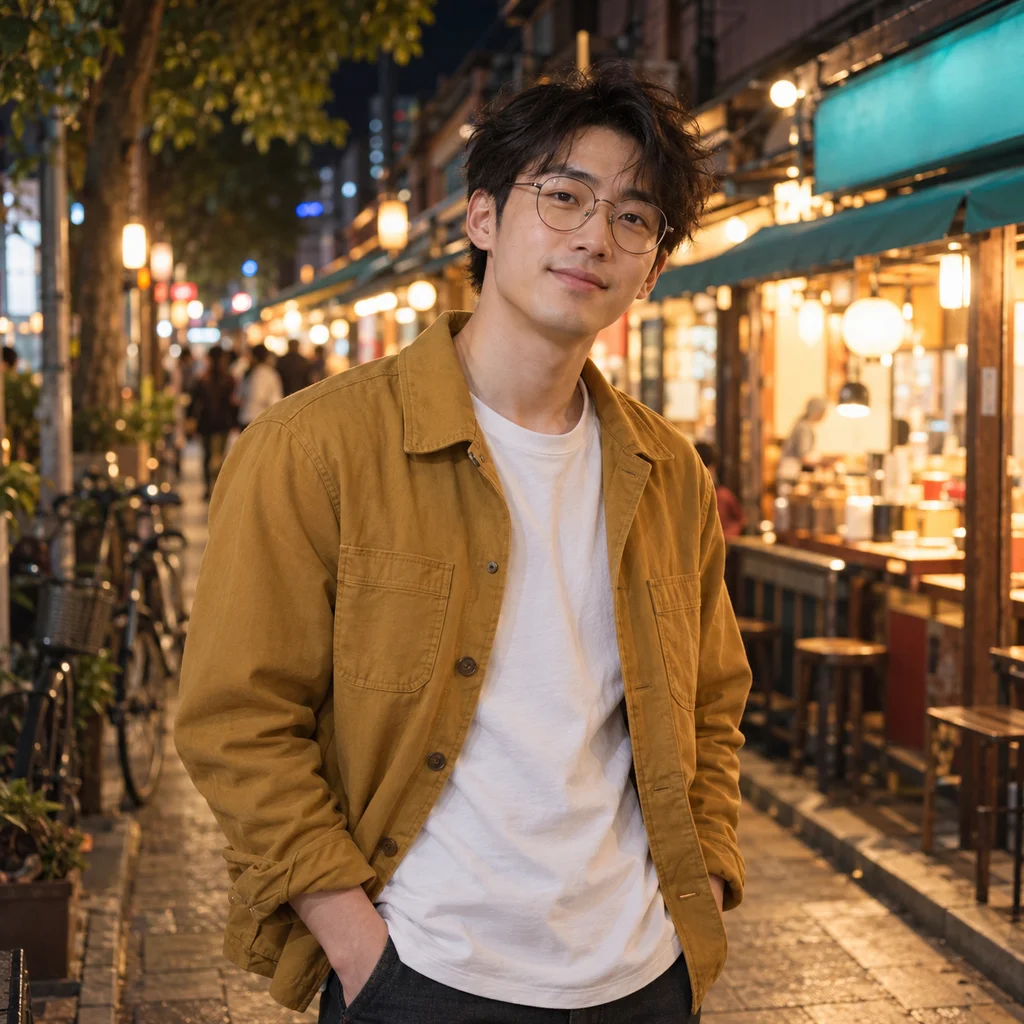
Continue with your photo
Give a portrait, family moment or pet a drawn anime look. Compare 16 visual presets, keep your instructions in one input and review the result before downloading.
Drag to inspect the actual Nano Banana Pro edit. These are synthetic demonstration references.
Open Image to AnimeUpload one JPG, PNG or WebP photo, choose a drawing medium and add a short note if you need a specific change. Generate the edit, compare it with the original, then select PNG, JPG or WebP for download. You can use the tool on this page without installing an app.
An eligible visitor can try one image with Grok before registering. The free preview is shared across this site, including the home and anime tools; opening another tool does not create a new allowance. You can inspect and download that result. Further edits use account credits, with the actual price shown before generation.
The drawing instructions aim to retain the subject count, recognizable features, pose and main layout. They are not an identity lock. Faces, hands, markings and small details can change. Use a clear photo and inspect the comparison, especially when several people appear together.
Graphite gives fine strokes, soft pencil leaves more paper, and loose sketch reduces detail. Charcoal, pen and ink, colored pencil, contour, stipple ink, vintage etching, blue ballpoint, red chalk and soft pastel offer different marks and pigments. The twelve thumbnails use one reference so you can compare the drawing treatments fairly.
Write that instruction in the same optional note, for example: “Keep my glasses and leave the background as white paper.” There is no second background form or hidden likeness slider. More requests can compete with the selected medium, so name the change that matters most.
You can print the raster file, but a 1K output has a limited pixel count. Check the downloaded dimensions against the print size you need. Saving a PNG does not add detail, create vector paths or turn a small image into a high-resolution poster. We do not label a 1K file as a 4K print.
This page focuses on artistic sketch treatments, including shading and texture. Ink can produce clearer contours, but it does not guarantee closed coloring areas, stencil-ready shapes or an SVG. Those are different output tasks; a grayscale or pencil image should not be presented as a verified coloring template.
Your photo and notes remain available so you can decide what to do next. Failure and credit reversal follow the existing generation ledger; check your credit history before retrying. References and generated files use private storage, while the selected model provider processes the request. The public examples here are synthetic references, not customer uploads.
Choose pencil, charcoal or ink, keep your notes simple and inspect the edit before you save it. Your reference is the starting point; the medium gives it a new drawing language.
Turn image into sketch now