Your photo. A real grid.

Photo to Pixel Art

A real pixel grid. Not a blurry filter.

Use Photo to Pixel Art to turn any picture into a true low-resolution sprite: you set the pixel grid, pick a limited color palette and export a real 64×64 PNG — or a crisp enlarged copy — straight from your browser. The conversion runs locally on this page, so your photo is never uploaded, and trying another size or palette costs nothing.

Convert a photo on this page

Runs in your browser · no upload · no credits

Click to upload a photo

JPG, PNG or WebP up to 10MB · drag & drop or paste also works

Pixel grid width — the real export size
Color palette

The fantasy-console palette most pixel jams expect

Dithering

Changing any setting reconverts instantly — nothing is sent to a server.

Photo to pixel art examples: see what a real grid keeps

Most "pixel" filters just shrink a photo and blur it back up, so the result falls apart the moment you scale it. A usable pixel asset is different: it has a real resolution, a limited palette and cells you can count. The examples below were produced by the same local converter as the tool on this page — one synthetic portrait, one building photo and one pet photo, each converted at a fixed grid width. Drag the comparisons to see how much detail survives at 64 and 96 pixels.

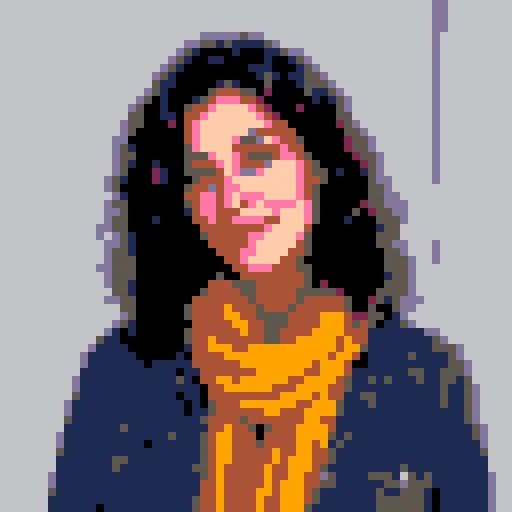
PICO-8 · 64px pixel conversion, actual output of this page's local algorithm
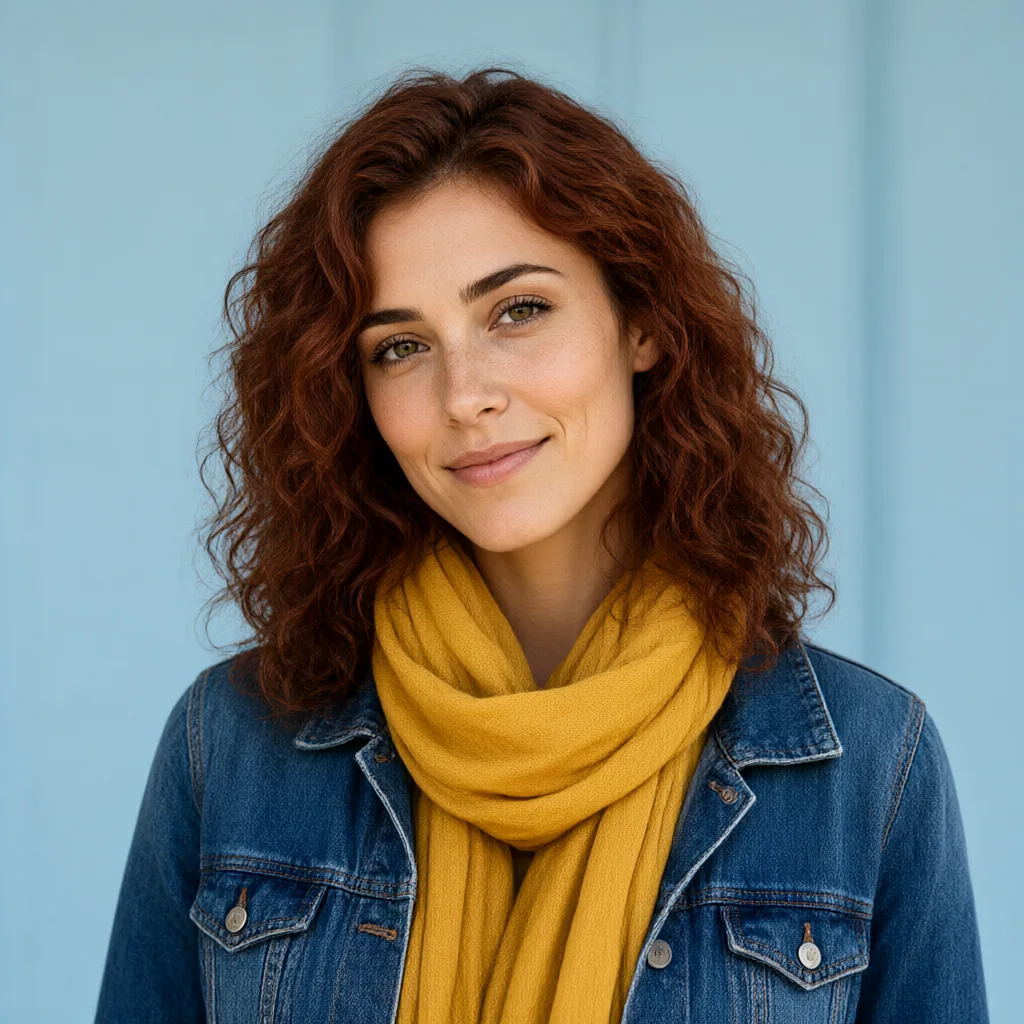
Synthetic portrait photograph before pixel conversion
OriginalPixel art

PICO-8 · 64px

A pixel avatar that survives scaling

A portrait becomes a 64×64 avatar in the 16-color PICO-8 palette. The curls, scarf colors and freckles are still readable because the converter averages each grid cell first and then snaps it to the nearest palette color — instead of sampling a single pixel and hoping. Export the native 64×64 file for a game profile, forum icon or Discord avatar, then download the ×8 crisp copy when a platform wants a larger upload. Both files come from the same conversion; the enlarged one repeats each pixel exactly, so it never softens.
NES base · 96px pixel conversion, actual output of this page's local algorithm
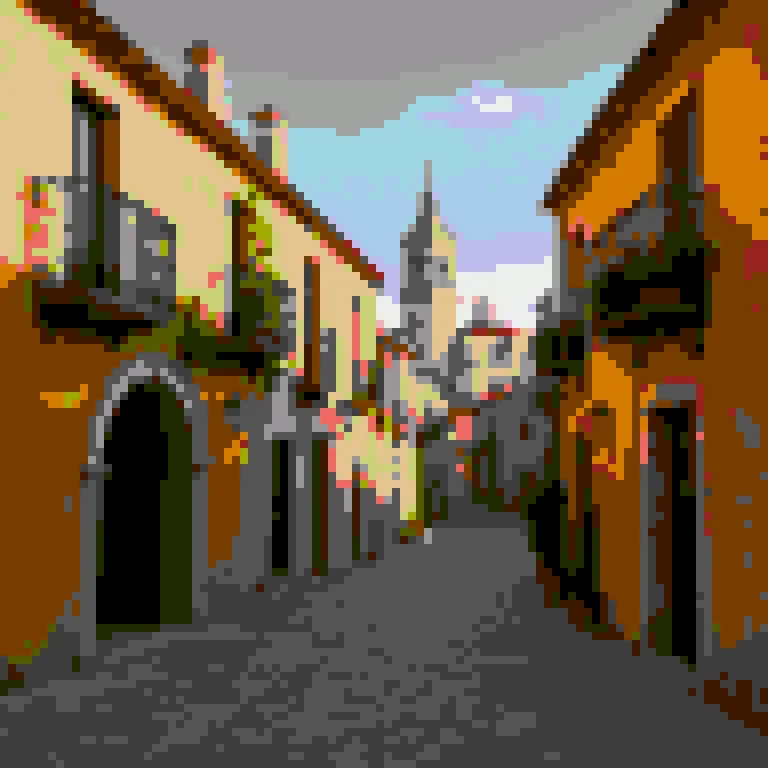
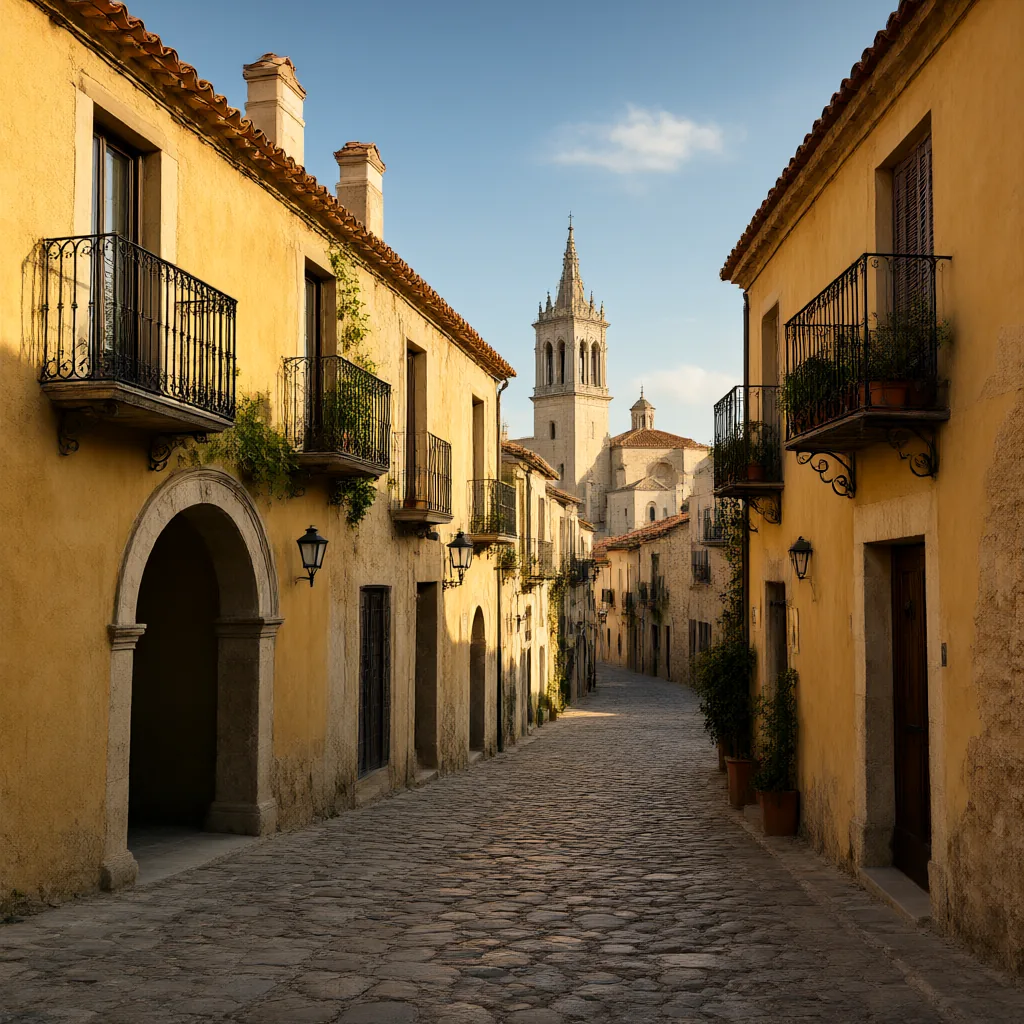
Synthetic building photograph before pixel conversion
OriginalPixel art

NES base · 96px

A travel photo as a game-scene prototype

Old-town architecture converts cleanly at a 96-pixel grid with the 54-color NES base palette: roofs, windows and shadows land on separate colors, which is exactly what a tile-based scene needs. This is a starting point for a level mockup or a map illustration, not finished sprite work — you would still clean up edges pixel by pixel in an editor. Because the output respects the palette, dropping it beside existing NES-colored tiles does not introduce odd hues that clash with the rest of the set.

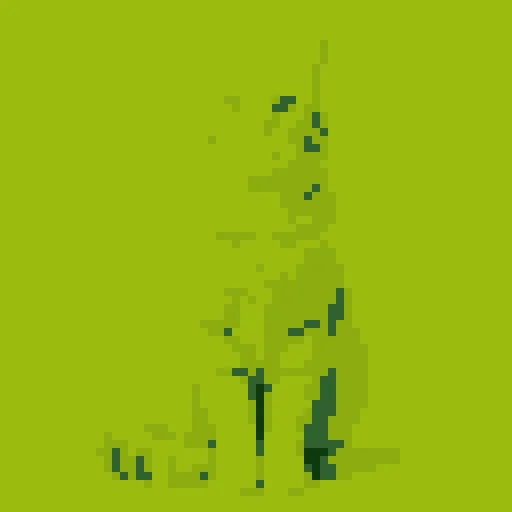
Game Boy four-color palette conversion of the same photo
Synthetic pet photograph before pixel conversion
OriginalGame Boy
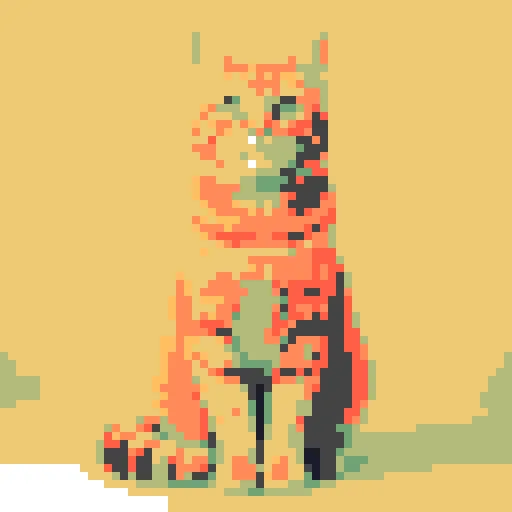
Sweetie 16 palette conversion of the same photo
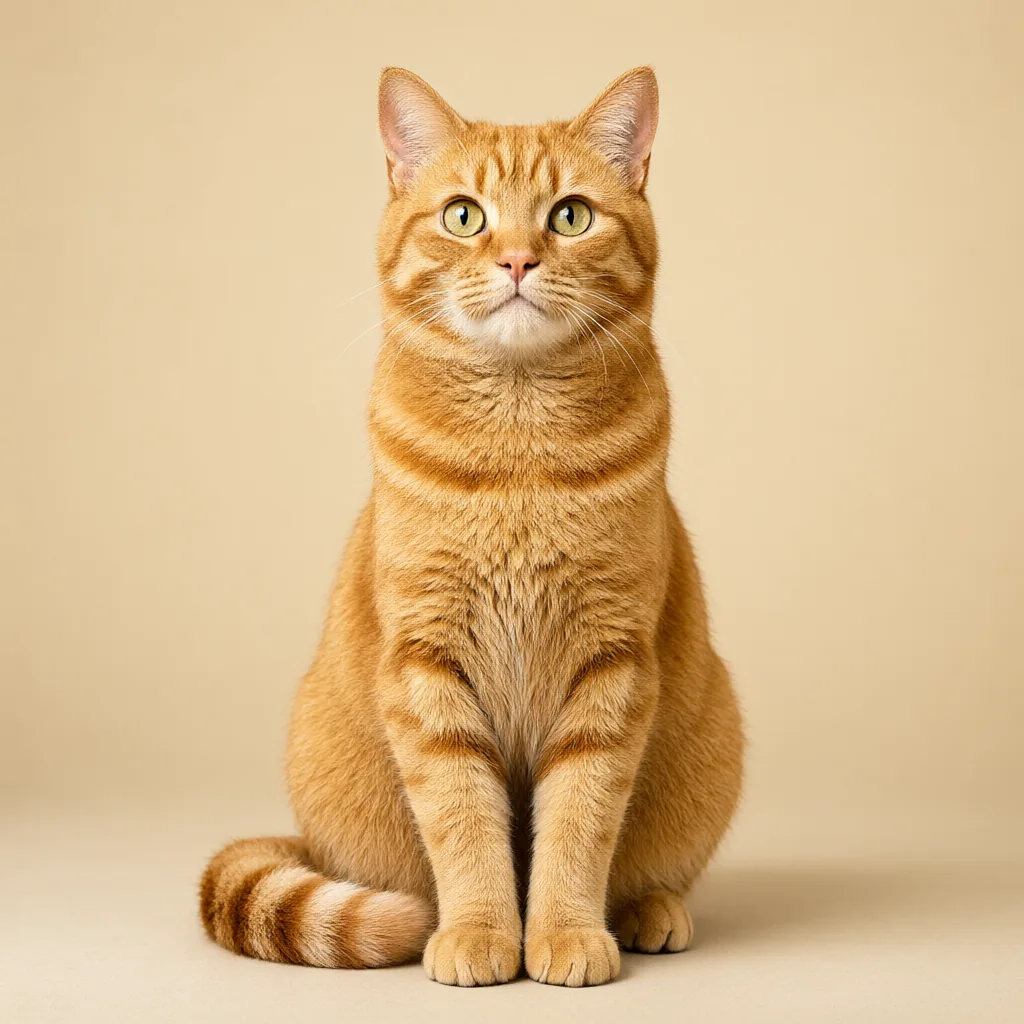
The same pet photograph before pixel conversion
OriginalSweetie 16

Game Boy & Sweetie 16 · 64px

One pet photo, two fixed palettes

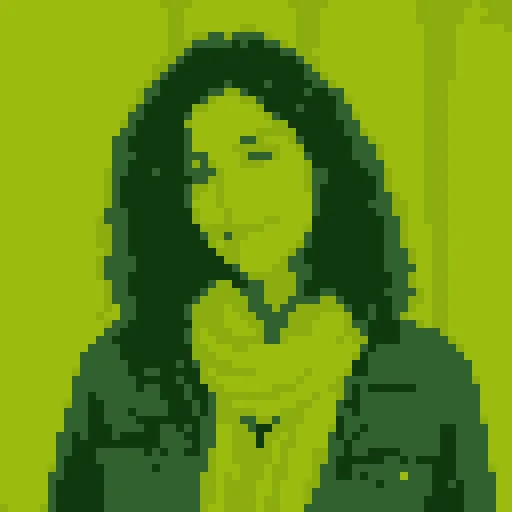
The same tabby reference converted twice: once with the 4-shade Game Boy DMG palette and once with Sweetie 16. Four colors force a stark, nostalgic silhouette and drop the coat pattern to light-and-dark masses; sixteen colors keep the stripe pattern and eye color recognizable. Comparing fixed palettes on your own photo is the fastest way to decide which direction fits your project — and since conversion is instant and local, the comparison costs nothing.

Before images are synthetic demonstration photographs; after images are the unedited output of this page’s local conversion algorithm at the stated grid and palette.

How to convert a photo to pixel art

  1. 1Upload card with click, drag-and-drop and paste entry points

    Set a real pixel grid

    Upload a JPG, PNG or WebP up to 10MB, then choose the grid width: 32, 64, 96, 128 or 256 pixels. The height follows your photo’s proportions, and the tool shows the exact export size — 64×64 for a square avatar, 96×128 for a portrait photo, and so on. Every cell averages the pixels under it, so the result is a true low-resolution image, not a large picture that merely looks blocky. Reconvert as often as you like; nothing is sent anywhere and nothing is charged.

  2. 2Grid width, color palette and dithering controls with a selection active

    Compare palette and dithering

    Pick a fixed palette — PICO-8, Sweetie 16, Game Boy DMG, Game Boy Pocket, the NES base set — or let the converter derive up to 24 colors from your own photo. Then decide whether gradients become flat cells or Floyd–Steinberg dithering, the classic dot pattern that keeps skies and skin from banding into hard stripes. The preview updates instantly and reports how many colors the result actually uses, so a "16-color palette" claim is something you can verify, not take on faith.

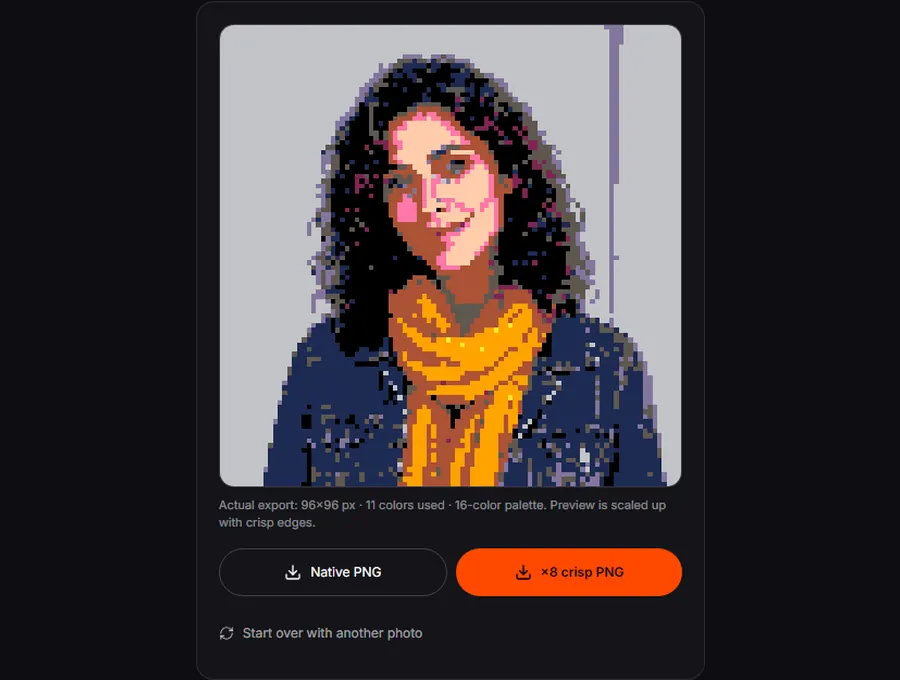
  3. 3Converted result in the preview panel beside the native and ×8 download buttons

    Export native and enlarged PNG files

    Download the native PNG when you need a genuine 64×64 or 96×96 asset for a game, a sprite sheet or a small icon — it is exactly that size, with square cells and a limited palette. Download the ×8 crisp PNG when a target needs something larger; each pixel becomes a clean 8×8 block with no smoothing in between. Store the native file as your master: re-enlarging it later is lossless, while re-converting from the photo with different settings is always free.

Portrait converted with Game Boy palette and dithering off: flat color cells
Dithering off — flat cells, hard edges
The same portrait with Floyd–Steinberg dithering: dot patterns preserve gradients
Floyd–Steinberg — gradients become dots

One photo, both dithering modes

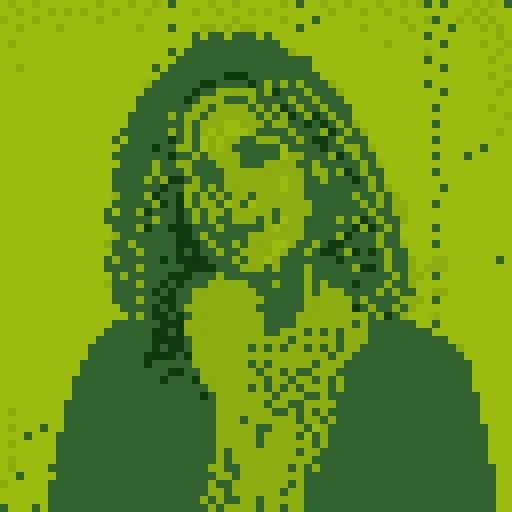
The same reference and Game Boy palette with the dithering switch flipped. Flat cells keep large shapes graphic and poster-like; error diffusion trades that for dot patterns that describe skin and sky more gradually. Neither is more correct — sprite work usually starts flat, then adds dithering only where a gradient earns it. Both outputs above are actual converter results you can reproduce with the sample photo.

Choose pixel size and palette before you export

A pixel art converter’s two decisions are how many cells the image gets and which colors those cells may use. Get them right in that order: size first, palette second, dithering last.

32 and 64 pixels

Avatars, chat icons and small props. At 32 the subject must be bold and centered; 64 is the classic sprite size where a face still reads. If the eyes disappear, try a tighter crop before giving up on the size.

96 and 128 pixels

Character portraits and simple scenes. Roofs, windows and objects start to keep their own colors, which makes these widths the sweet spot for level mockups and tileable backgrounds.

256 pixels

Detailed scenes and hero images. Still visibly pixel art, but close enough to the photo that busy textures can turn into noise — pair it with a stricter palette or a simpler crop.

When a project demands a specific palette — a jam rule, an existing tileset, a console look — start from the matching fixed palette here rather than fixing colors later. Off-palette pixels are much harder to remove after the fact than to never create.

Pixel art for avatars and game prototypes

A game-ready profile sprite

Turn your own portrait into a 64×64 avatar that matches a jam’s palette rules. Because the export honors the palette instead of approximating it, the file slots beside other assets without introducing off-palette colors. Check the small crop in your engine or platform before committing — a sprite that reads at full size can lose its eyes in a tiny circle.

A prototype before pixel work

Blocking out a scene from a reference photo is faster than drawing it from scratch. Convert at 96 or 128, export the native file, and use it as an underlay while you push pixels by hand. The converter is deliberately not an AI redraw: shapes stay where the camera put them, so your prototype keeps the photo’s composition instead of inventing a new one.

Craft and bead planning

A 32 or 64 grid with a fixed palette works as a perler-bead or cross-stitch plan: each cell is one bead or stitch, and the color count tells you how many shades to buy before you start. Print the enlarged export and mark cells as you go; the crisp ×8 version is sized for exactly that.

What the converter can and cannot do

This converter quantizes your photo; it does not redraw it. That is its strength — no invented faces or drifted proportions — and its boundary. It will not outline a subject the way a hand-drawn sprite does, remove a background, or follow retro console restrictions beyond the palettes offered. Very fine textures can alias into shimmering noise at small grids, and the "Auto limited" palette follows your photo’s hues, so two different photos never share one exact palette. For an AI-interpreted cartoon or a hand-drawn line treatment rather than a faithful pixel grid, use the cartoon and sketch tools linked below instead.

Every editor below works on your own photo. Compare what each one changes, then open the tool that fits your project.

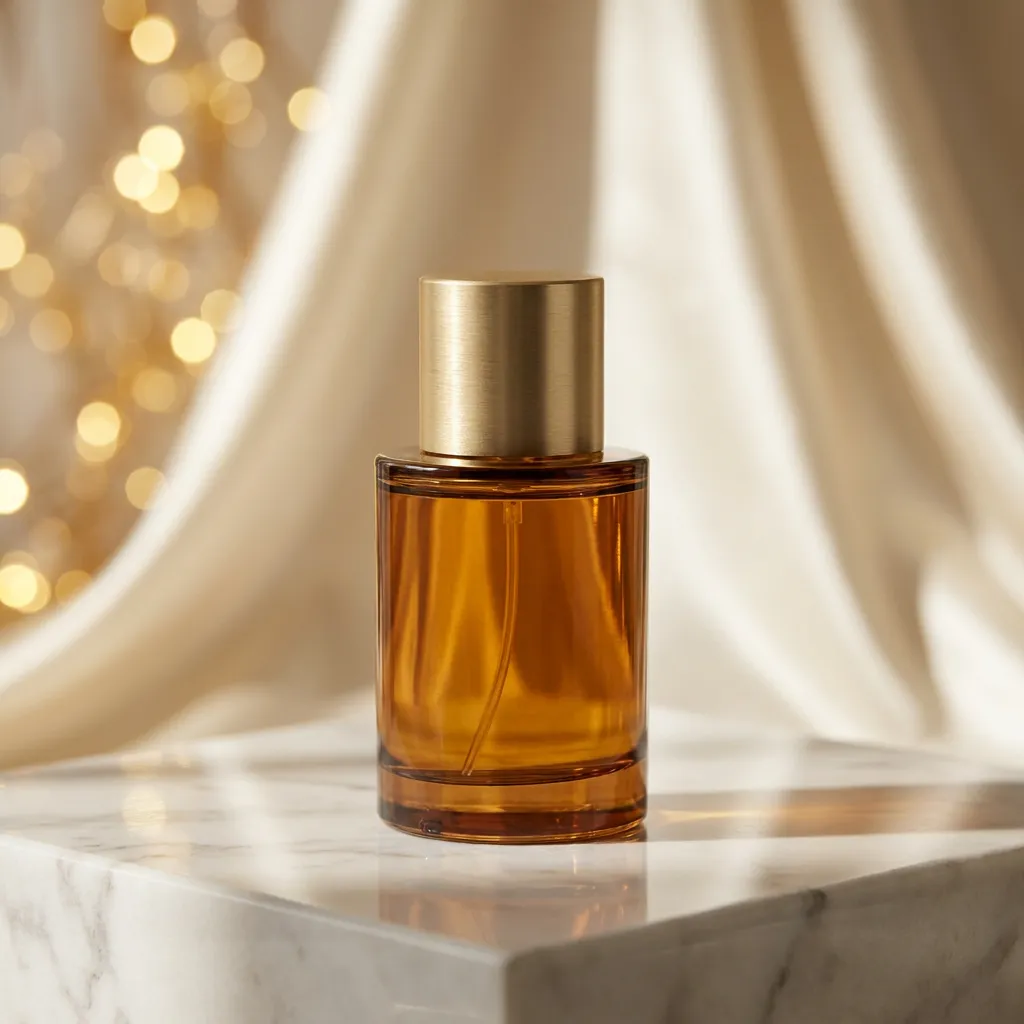
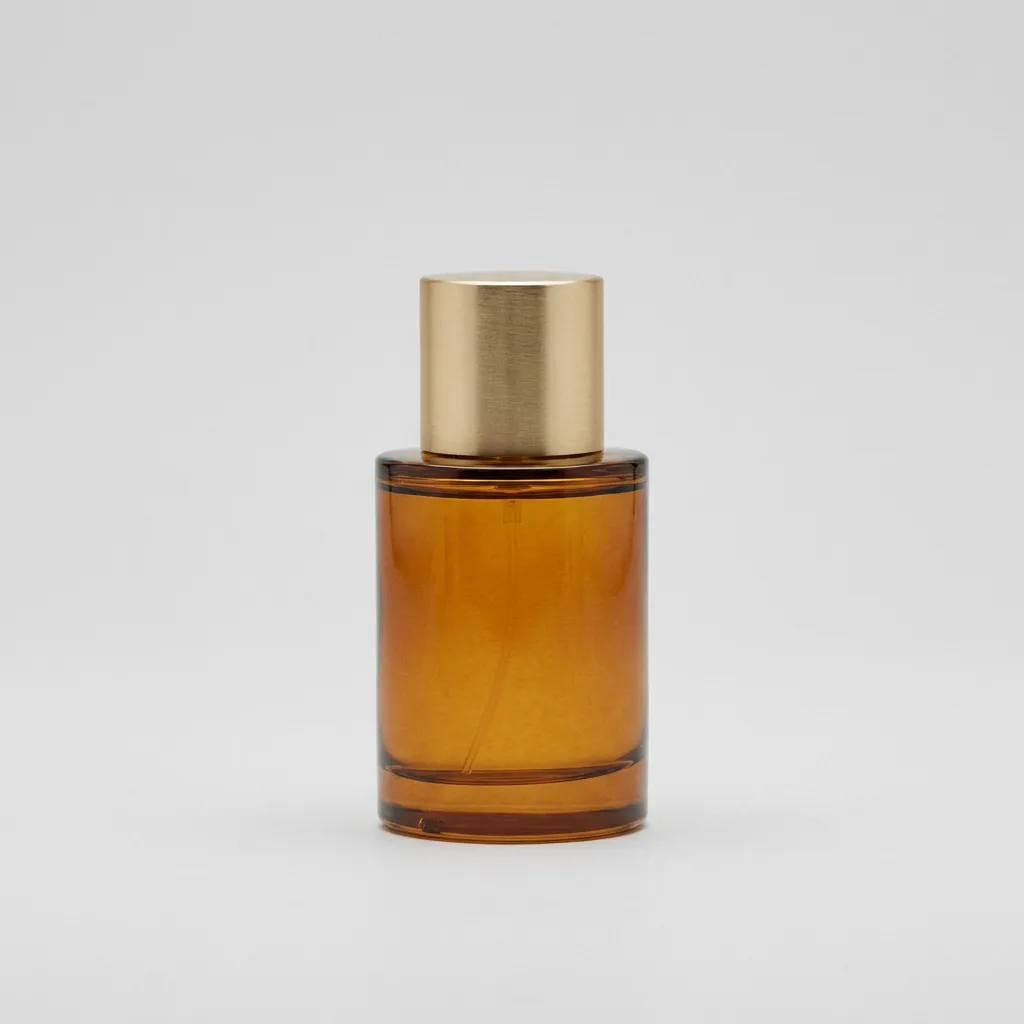
Perfume in a styled scene, actual model edit
Synthetic perfume reference before scene editing
OriginalEdited

Continue with your photo

Explore Image to Image AI

Edit a product scene, an outfit or the atmosphere in a photo with a focused instruction. Use your reference as the starting point and compare the available editing models before generating.

Drag to inspect the recorded edit. These are synthetic demonstration references.

Go to Image to Image AI
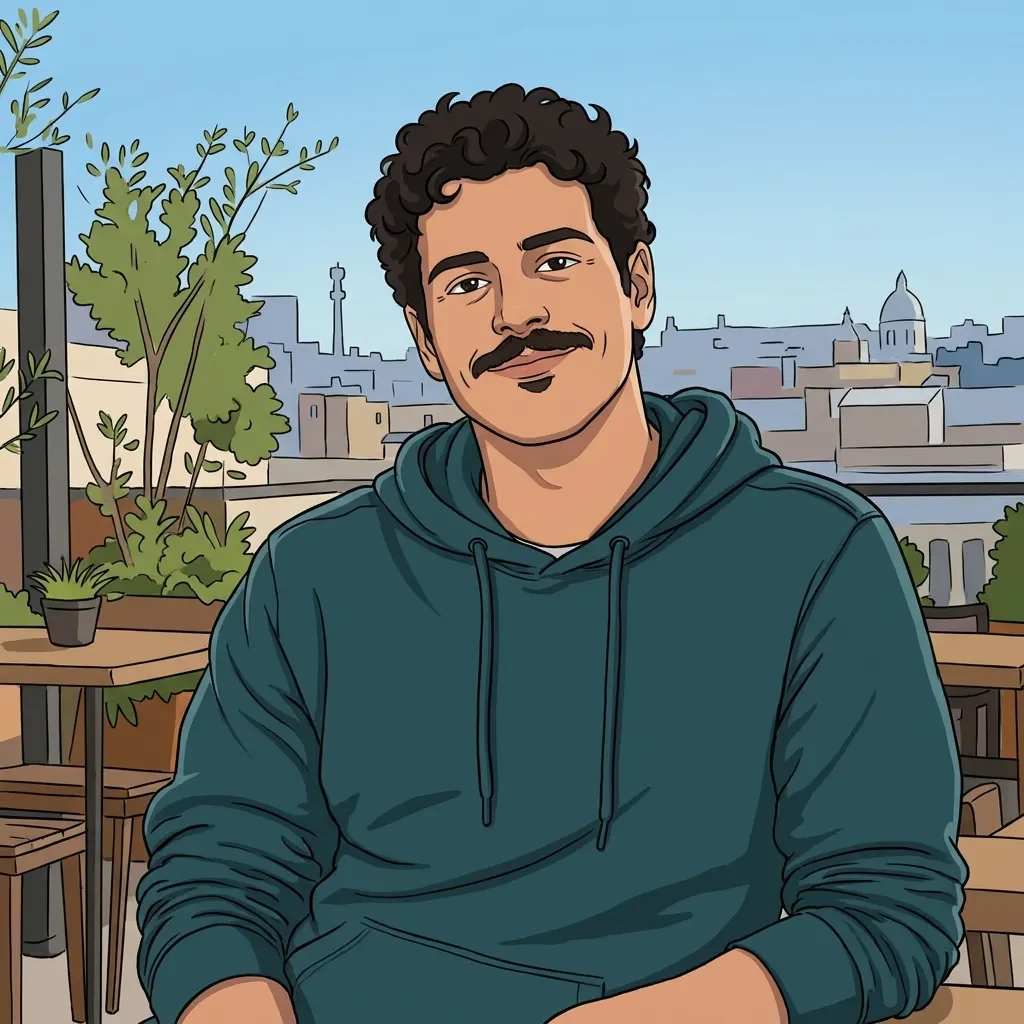
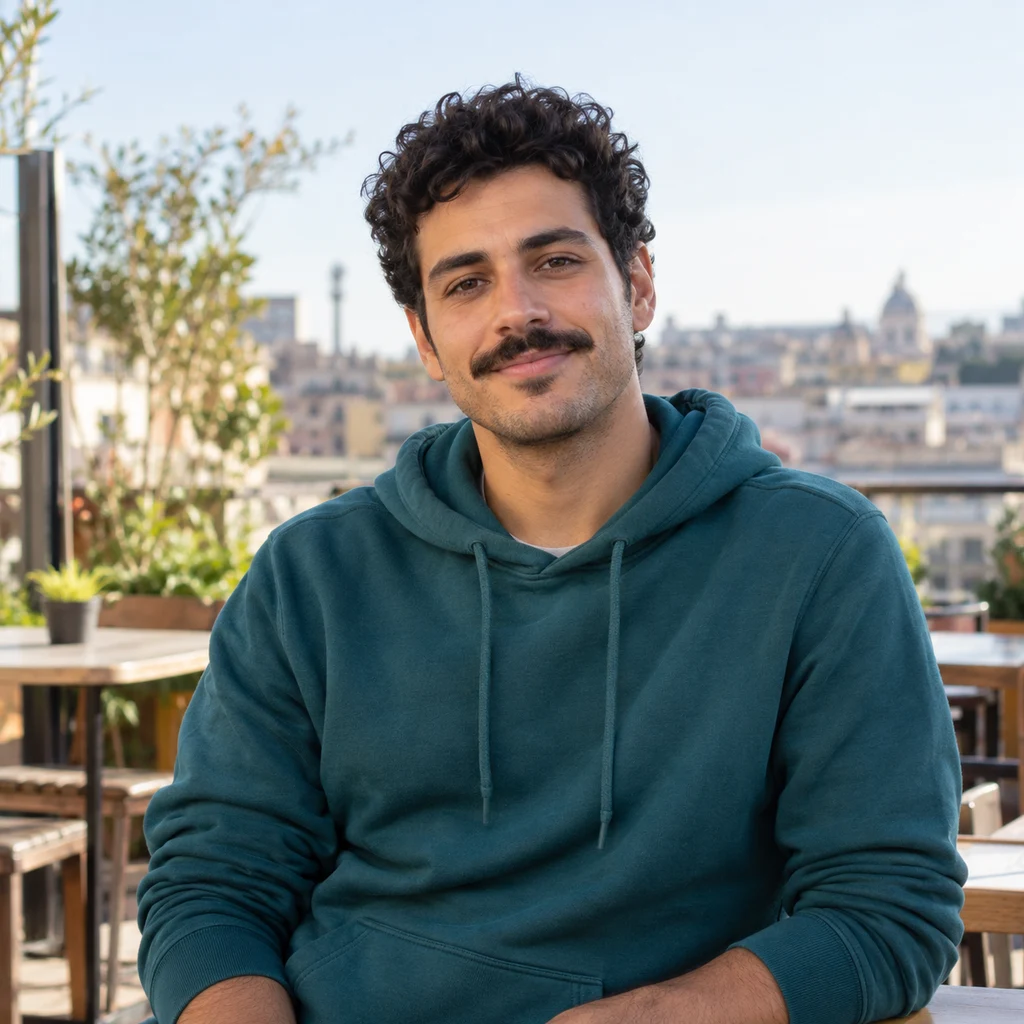
Image to Cartoon AI, actual model output
Synthetic demonstration portrait before artistic conversion
OriginalCartoon

Continue with your photo

Image to Cartoon AI

Compare twenty-four original cartoon treatments on the same reference. Give a portrait, pet or family photo a drawn character look, inspect the result and download your favorite version.

Drag to inspect the recorded edit. These are synthetic demonstration references.

Open Image to Cartoon AI
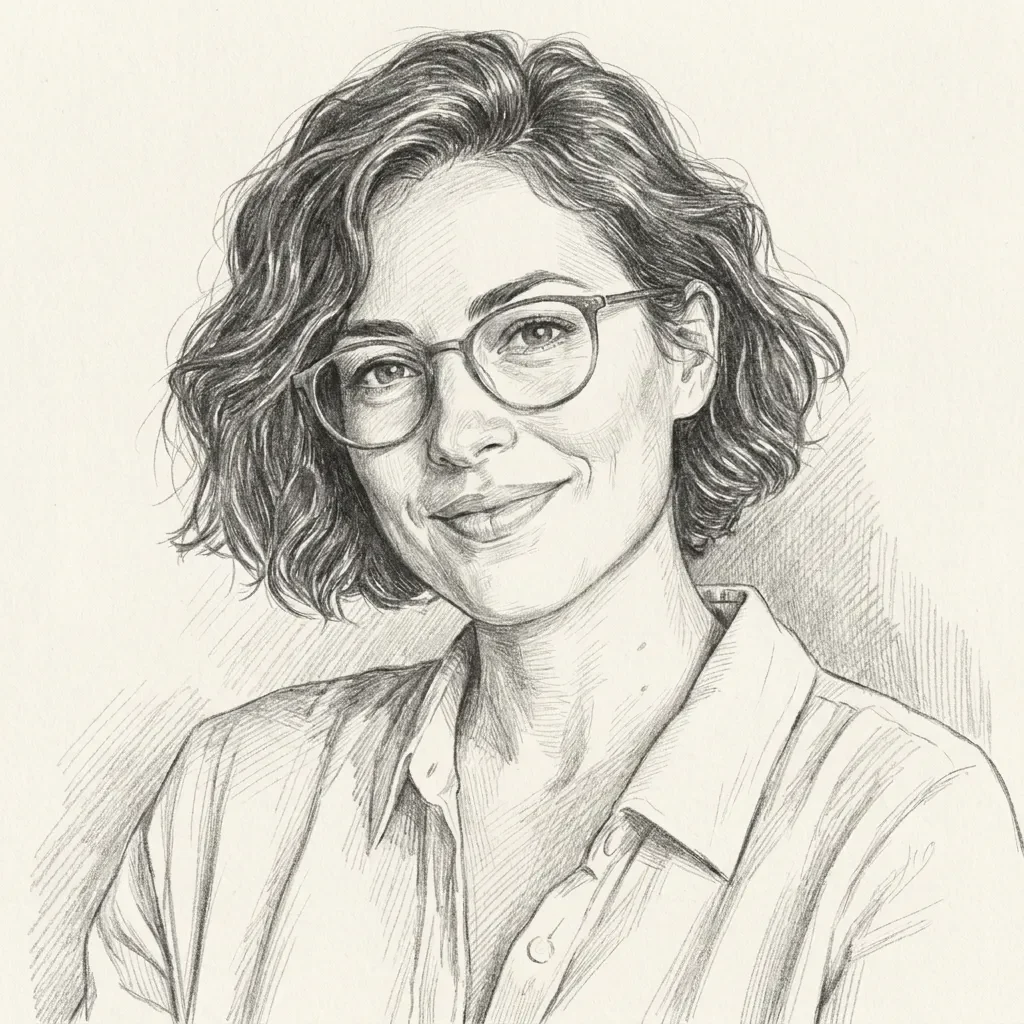
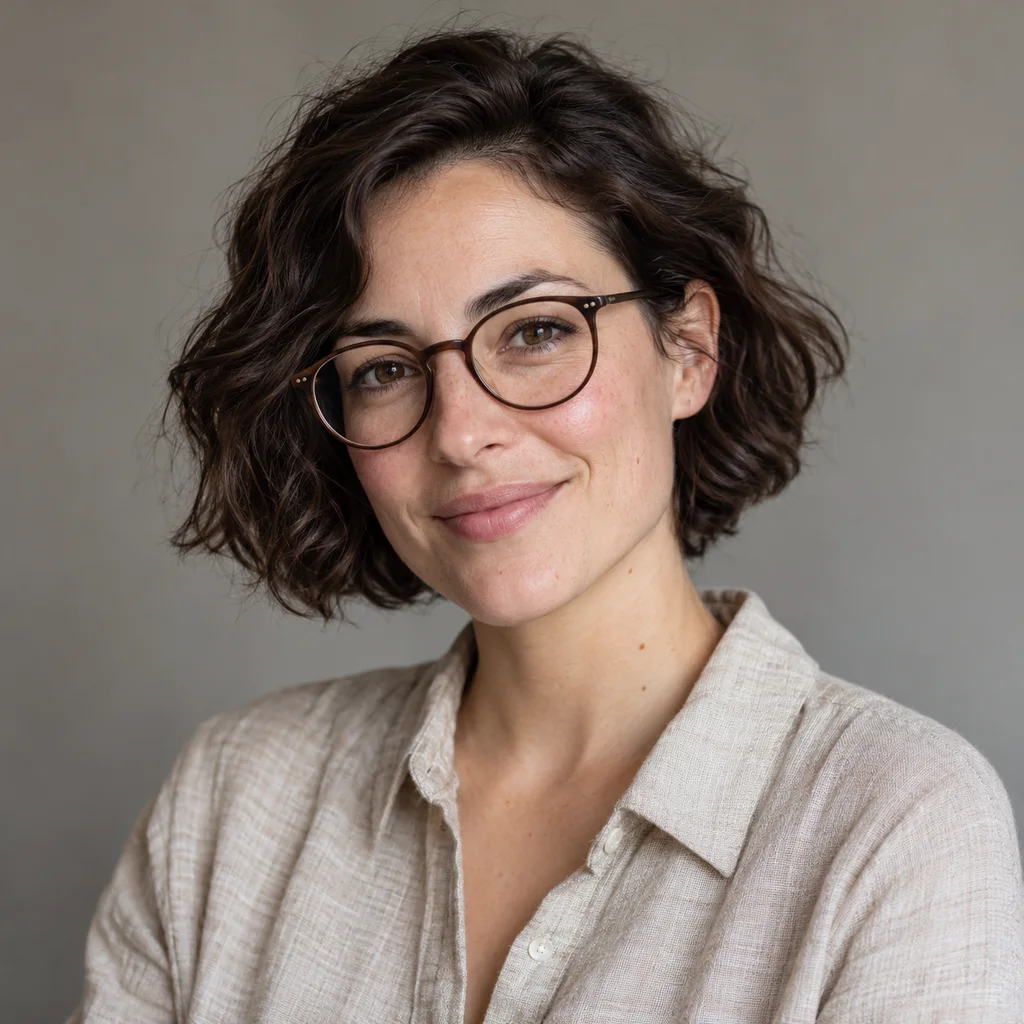
Graphite pencil portrait, actual model output
Synthetic portrait with glasses before pencil conversion
OriginalSketch

Continue with your photo

Turn Image into Sketch

Explore twelve drawing treatments, from graphite and charcoal to stipple ink, vintage etching, blue ballpoint, red chalk and pastel. Compare the marks and shading with your original photo before downloading.

Drag to inspect the recorded edit. These are synthetic demonstration references.

Open the sketch tool

Photo to pixel art FAQ

Does the photo to pixel art converter really export 64×64 files?

Yes. The native PNG is exactly the grid size you selected — 64 pixels wide, with the height following your photo’s aspect ratio. It is a true low-resolution image with square cells, not a large image that only looks pixelated. The separate ×8 export enlarges that same file with nearest-neighbor scaling, so it stays crisp at any zoom.

How do I limit the color count and avoid blurry scaling?

Choose a fixed palette (4 to 54 colors) or "Auto limited" for a photo-derived palette capped at 24. The result reports how many colors it actually uses. Blurry scaling happens when a pixel image is stretched with smoothing — avoid it by sharing the native file, or the ×8 crisp export, instead of letting an app resize a small PNG on its own.

Is anything uploaded to a server?

No. Your photo is decoded in your browser, converted on an offscreen canvas and exported locally. There is no account, no credit cost and no upload for the conversion itself. Only the sample photo and the example images on this page come from this site’s own assets.

What is the difference between this and the cartoon or sketch tools?

This page performs a deterministic, local conversion: same photo and settings give the same pixel result, with a real resolution and palette limits. The cartoon and sketch tools send your reference to an AI editing model that redraws the subject in a drawn medium, which produces a new interpretation each run and costs credits. Use pixel art when you want exact control; use the AI tools when you want an artist’s redraw.

Which palette should I pick?

PICO-8 and Sweetie 16 are friendly all-round choices for avatars and props. Game Boy DMG (4 colors) gives the strongest retro statement; Game Boy Pocket is its grayscale sibling. The NES base set suits scene mockups that must sit beside console-era tiles. "Auto limited" keeps your photo’s own mood when nothing external constrains you.

Can I convert the pixel art back or recover the photo?

No — quantization is one-way. The native PNG is your master: keep it alongside the original photo so you can always reconvert at another size or palette for free, which is faster than any "enhance" step.

More ways to work with your photo

Turn a photo to pixel art right now

Pick a grid, pick a palette, export two PNGs — all on this page, in your browser, at no cost.